How to Check Eaglercraft Version: 1.8.8, 1.12.2, or 1.21
Identify the client before you join a server, test a seed, or troubleshoot a world that will not load.

On this page
How to check Eaglercraft version quickly
To check your Eaglercraft version, start with the client that is actually running. Open the main menu, pause screen, settings, or About/credits area and look for a version number, client branch, or build suffix. A page title that only says Eaglercraft is not enough because one site can link to several builds.
Before joining a server, keep the client label separate from the server address. A search snippet, mirror filename, or server name may be useful context, but none of them proves which client finished loading. Record the label first, then use the matching guide for the task you want to complete.
If the clues disagree, mark the result as unknown instead of treating a page label as proof. Keep a short note for later.
Write the client label, build path, page URL, and date in the same note.
Strong clue
A complete label shown by the loaded client, such as 1.8.8 or 1.12.2, is the best starting evidence.
Weak clue
A generic title, mirror filename, or server name does not confirm version compatibility.
1. Check the version in the in-game menu
The in-game menu is closer to the running build than a third-party page title. Wait until the client finishes loading, then inspect the lower corners, pause screen, options screen, or About/credits panel. Builds place this information differently, so check more than one menu if the first screen has no label.
Copy the complete string, including a project name or suffix. Some clients show a full Minecraft version; others show a branch or community-build note. Do not decide while the browser only shows a loading message, because the final client may use a different path after boot.
Steps
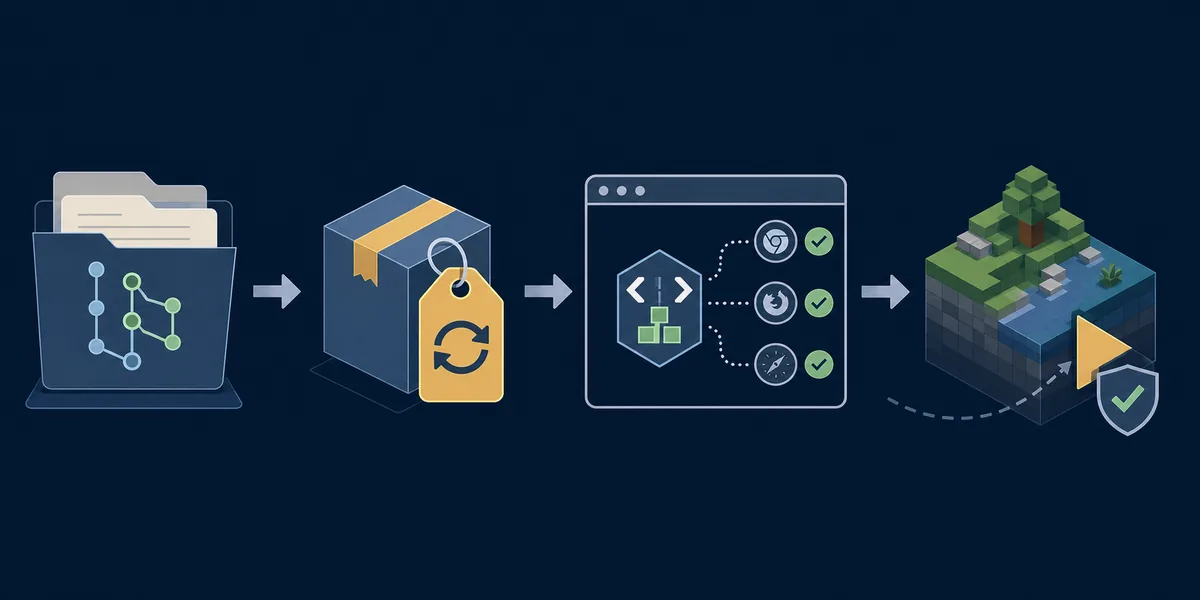
- Let the Eaglercraft client finish its initial load.
- Open the main menu, pause screen, settings, or About area.
- Copy the complete version or build label, including suffixes.
- Record the URL and whether the browser offered WASM or JavaScript.
2. Use the browser page and URL as supporting clues
If the menu hides the version, inspect the full page address. A parameter such as version, client, or build may show which player the page requested. Treat that value as supporting evidence: a wrapper can redirect, replace an iframe, or fall back to another client after the page opens.
Also compare the page title, play-button wording, and loading notice with the label shown after boot. When a URL comes from a friend, save the clean address and the version clue separately so tracking parameters do not get mistaken for a build change.
The URL identifies the requested build; the loaded menu helps confirm what opened.
| Clue | Strength | How to use it |
|---|---|---|
| Loaded menu label | Strong | Use it as the primary version note. |
| Version value in URL | Medium | Compare it with the loaded client. |
| Page title or button | Medium | Use it to choose a guide, then confirm. |
| Mirror filename or snippet | Weak | Never use it alone for compatibility. |
3. Tell Eaglercraft 1.8.8, 1.12.2, and newer builds apart
Do not identify a client by one block, item, or menu color. Community builds can change menus or backport features. Eaglercraft 1.8.8 is the classic browser-play context used by many guides, while 1.12.2 has a different compatibility boundary. A 1.21 label or another newer community label should be treated as its own status rather than assumed to be a direct upgrade.
When the evidence conflicts, record the client as uncertain and test only with a disposable world. A successful page load does not prove that a server, resource pack, seed, or saved world matches the build.
| Clue | Interpretation | Next check |
|---|---|---|
| 1.8.8 | Classic browser-play context | Read the 1.8.8 guide and server notes. |
| 1.12.2 | Separate compatibility context | Use the 1.12.2 guide and verify the server. |
| 1.21 or newer | Community-build context | Read status notes before using a world. |
| Only Eaglercraft | Version not confirmed | Inspect About, credits, and the URL. |
4. Record the version before you play
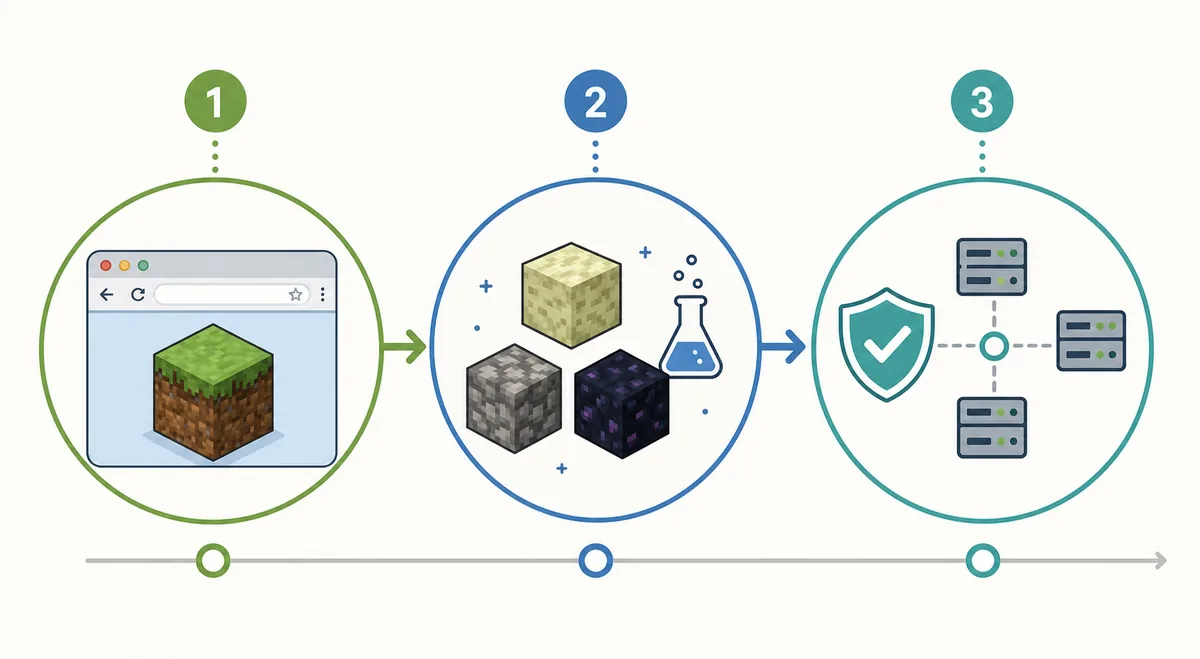
Write the exact client label or build suffix, page URL, browser, and date. For multiplayer, add the server address and connection mode. For a seed or saved world, put the version beside the seed or save name so a later test does not silently use a different client family.
This note is useful on shared computers and mobile browsers, where storage resets, private windows, or refreshed mirror pages can change the result. Keep the old note instead of overwriting it when a page or build changes.
Servers
Record client version, address, connection mode, and the first error message.
Worlds and seeds
Record version, seed or save name, and whether the test is disposable.
Mobile
Add the device and browser because controls and storage can differ.
What to do when the version label is missing
A missing label does not automatically mean the client is broken. Finish loading, then check settings, About, credits, the pause screen, and the full URL in that order. Opening many random mirrors makes it harder to tell which client produced the behavior you are seeing.
If the version remains unknown, note the menu layout, available options, resource behavior, and server result from a disposable test. These clues can suggest a client family but cannot prove it. Do not download an unknown EXE, APK, extension, or launcher merely to reveal a version number.
Never turn a guessed version into a compatibility claim.
Steps
- Refresh once and wait for a usable menu.
- Check settings, About, credits, pause screen, and URL.
- Test only a disposable world or documented server.
- Mark the result confirmed, likely, or unknown.
Why version matching matters for servers, mods, and worlds
A client version can affect menu options, world generation, resource loading, protocol support, and browser runtime behavior. A guide written for one boundary may be accurate and still fail for another. Match the client family before you change several variables at once.
For servers, follow the server's stated client family and connection instructions. For mods or texture packs, check compatibility and add one change at a time. For seeds, use the same version family when comparing spawn locations, villages, or structures.
| Task | Match first | Avoid |
|---|---|---|
| Join a server | Client family and connection instructions | Assuming every build is accepted |
| Load a pack | Version, loader expectations, and source | Adding unknown files together |
| Test a seed | World-generation family and spelling | Trusting a screenshot alone |
| Use a saved world | Client and browser-storage context | Clearing data before a backup |
A repeatable 60-second Eaglercraft version check
Use the same order every time: load the page, read the menu, inspect the full URL, record the browser and date, then run only the smallest safe test. This creates a useful note for a friend, server owner, or future troubleshooting session.
If the result is still unclear after one careful pass, keep it marked unknown and ask for a trusted source. You do not need to memorize every community build to avoid a mismatched guide.
A clear note can say: “Eaglercraft [label], [browser], checked [date].”
Steps
- Load the client completely.
- Copy the in-game version or build label.
- Compare the page title and URL.
- Record browser, date, and task.
- Test with a disposable world or documented server.
Bottom line
To check your Eaglercraft version, trust the label shown by the loaded client first. Use the page URL and title as supporting clues, record the exact result, and then open the guide that matches the version family.
If the label says 1.8.8, 1.12.2, 1.21, mobile, or another community build, keep that boundary explicit when you follow server, seed, world, or troubleshooting instructions.
Frequently asked questions about Eaglercraft versions
Source checked
- Eaglercraft official play page — Checked as the first-party browser-play reference; labels and selectors can change.
About the author
Sophie Hartwell
Sophie writes practical browser-game guides about Eaglercraft versions, server choices, world setup, and safe troubleshooting.
Last reviewed: September 7, 2026 — Focus: version identification and compatibility clues
Ready to verify your client?
Check the running menu, record the exact label, and open the guide that matches.