Eaglercraft Unblocked: Safe Browser Play, Chromebook Tips, and Red Flags
A practical guide to Eaglercraft unblocked, Minecraft unblocked browser access, Chromebook limits, safe mirrors, and what to do when a page will not load.

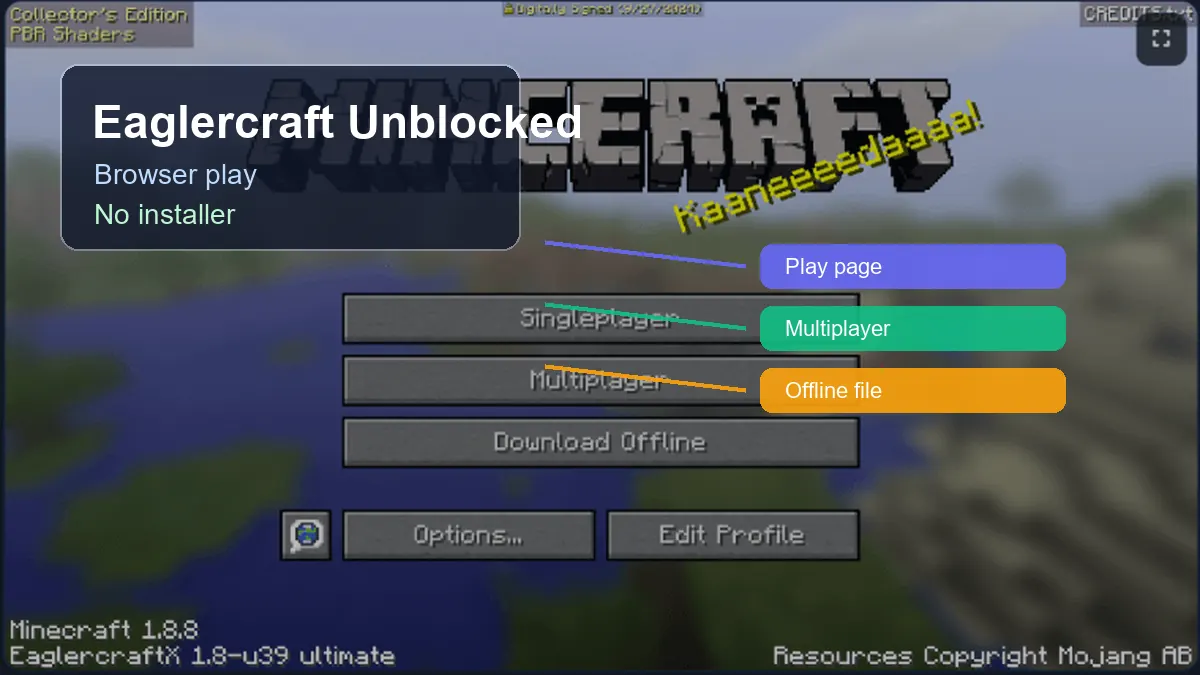
Table of Contents
What Does Eaglercraft Unblocked Mean?
Eaglercraft unblocked is usually a search phrase for browser access on a restricted Chromebook, school computer, library device, or work network. It does not automatically describe a separate official version. Most visitors want a page that opens in the browser, identifies the client version, and avoids a surprise Java install, launcher, APK, or EXE.
The intent is related to the main play page but not identical. The play page should help someone start Eaglercraft 1.8.8 quickly; this guide explains what to check when a page is blocked, a mirror fails, a managed Chromebook restricts local files, or a result tries to turn browser play into an unsafe download.
Treat unblocked as an access-and-safety question, not permission to bypass school or workplace rules. Follow the policy for the device and network you use. The useful answer is a clear browser path, a known version, and fewer risky permissions.
Use a trusted browser page first. Only consider alternate mirrors or offline files when you understand what the file is and why the normal page is unavailable.
Eaglercraft 1.8.8 Unblocked vs Random Mirrors
For SEO and for players, the safest keyword boundary is clear: this page covers unblocked browser access, while the main Minecraft 1.8.8 guide covers version features and gameplay basics. When a search result says Eaglercraft 1.8.8 unblocked, you need both ideas, but the decision is still about safe browser access first.
Choose a page that names the version, explains whether it is online or offline, and does not hide the real action behind fake play buttons. If you want servers, controls, or the version comparison, use the dedicated guides linked below instead of trusting a mirror that tries to answer everything with one download button.
A good unblocked page should reduce risk: browser first, clear file type second, native installers avoided. That keeps the intent separate from Eaglercraft download searches and prevents the guide from drifting into unsafe APK or EXE recommendations.
| Search intent | Best existing page | Why |
|---|---|---|
| Play Eaglercraft in a browser | Homepage | Fast launch and the embedded game are the primary need |
| Minecraft 1.8.8 controls or features | Minecraft 1.8.8 guide | Version details belong with gameplay and setup |
| Unblocked at school or Chromebook | This unblocked guide | Access, policy, mirror, and safety questions are central |
| Offline HTML, ZIP, APK, or EXE | Download safety guide | File types and installer risks need deeper safety context |
The Safest Eaglercraft Unblocked Access Path
Start with a normal HTTPS browser page that states what version it runs. A browser-first page should work in a current Chrome, Edge, Firefox, or Safari session without asking for a desktop installer, Android APK, extension, notification permission, or unrelated login.
If the first page fails, diagnose before trying another mirror. Check browser updates, WebGL, WebAssembly, local storage, and content blockers. A first load can take time, but repeated blank pages, forced redirects, and fake play buttons are signals to leave the page.
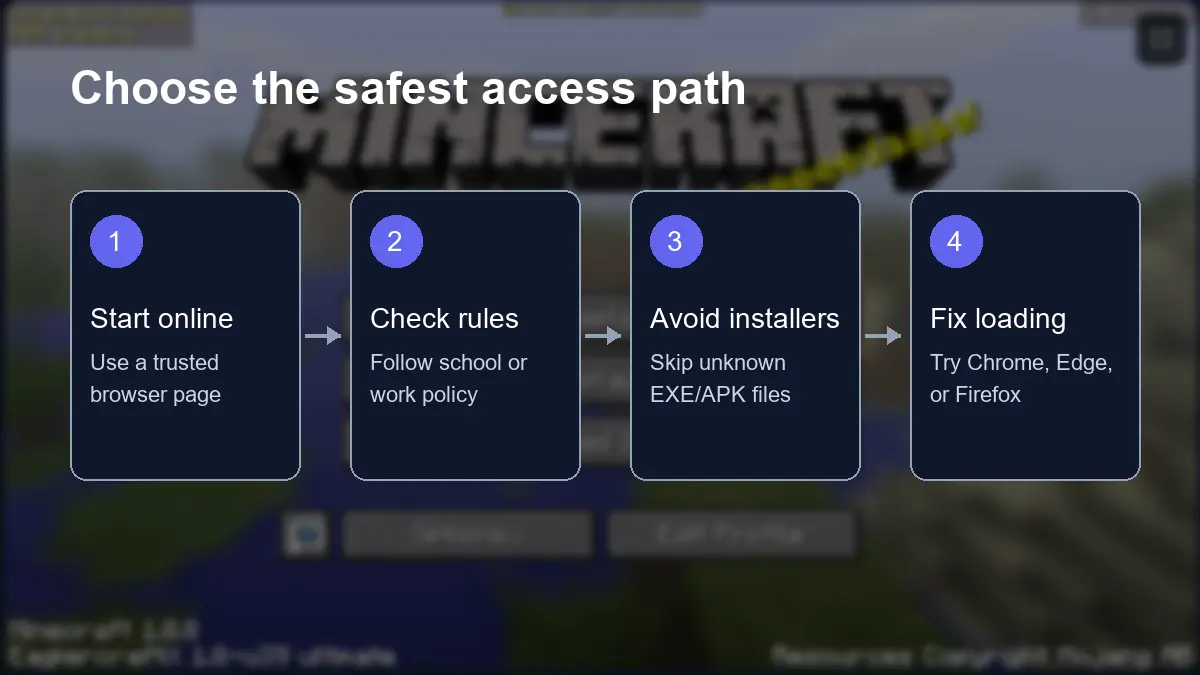
Use this order: hosted browser play first, a clearly described HTML or ZIP backup only when the source explains it, and native installers never as a default. The word unblocked does not make an unknown file safe.
| Access option | Best use | Risk level | What to check |
|---|---|---|---|
| Trusted browser page | Fast play on a normal browser | Lower | HTTPS page, clear version, no forced installer |
| Alternate mirror | When the first page is unavailable | Medium | Recognizable source, same version, no redirect chain |
| Offline HTML or ZIP | Backup file for known builds | Medium | File type, extracted assets, browser permissions |
| APK, EXE, or extension | Rarely needed for browser play | High | Avoid unless the source is fully trusted |
Start online
Use a standard browser page before looking for downloads or mirrors.
Read the page
A useful page names the version, file type, and basic loading requirements.
Keep it in the browser
Eaglercraft-style play should not require unknown native software.
Respect rules
Managed school and work devices may restrict games for policy reasons.
School Chromebook and Restricted Network Notes
Chromebooks are a common reason people search Eaglercraft unblocked because they favor browser-based software over traditional Java launchers. Managed Chromebooks may still block game domains, local files, storage, unknown downloads, or multiplayer connections.
A current browser needs memory, WebGL, WebAssembly, and local storage for a smooth session. If the same page works at home but not at school, the difference is often network filtering or device policy rather than your account or keyboard.
Do not solve a managed-device restriction by installing random extensions, VPNs, APKs, or executable launchers. If browser play is blocked, use an allowed network or personal device where gaming is permitted.
A blocked school Chromebook is often a policy issue. Safer troubleshooting means checking browser support and allowed access, not installing unknown bypass tools.
| Symptom | Likely cause | First safe step |
|---|---|---|
| Page does not open | Domain or category blocked | Try an allowed network or personal device |
| Game stays black | First load, WebGL, or asset issue | Wait, refresh once, then test a modern browser |
| Offline file will not open | Local file policy | Use a hosted page instead of forcing local access |
| Worlds do not save | Storage disabled or private mode | Enable normal browser storage where allowed |
Mirrors, Downloads, APKs, and Red Flags
Unblocked search results often include mirrors because gaming domains move, get copied, or become unavailable. A mirror is not automatically unsafe, but you should judge it by behavior. A reasonable mirror loads a page, names the version, and lets you play or read instructions. A suspicious mirror hides the game behind pop-ups, fake buttons, unrelated installers, or repeated redirects.
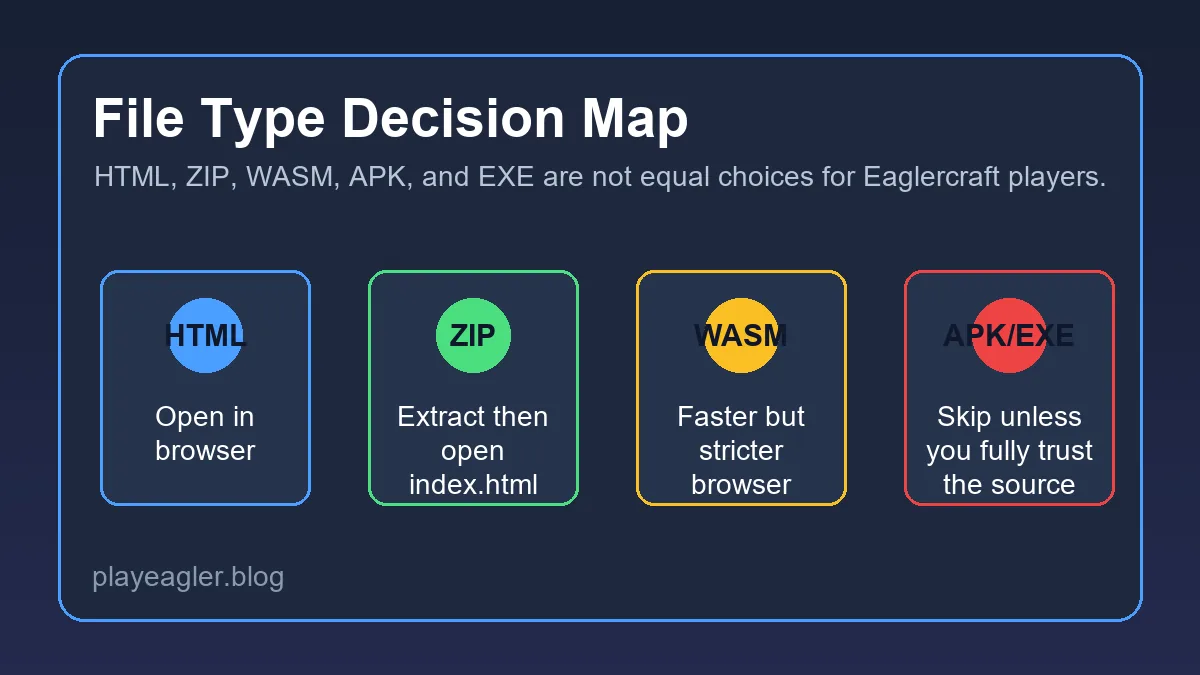
Download pages need extra caution. An HTML file or ZIP archive can be part of browser play, but only if the source explains the file. APK and EXE downloads are a different category because they install or run native software. You do not need a surprise executable to play a browser client, and you should not install one just because a page includes the word Eaglercraft.
The same rule applies to 'Eaglecraft unblocked' misspellings. Many players type the name differently, and legitimate pages may mention the spelling variant. But typo-heavy domains and copied titles are also common in low-quality mirrors. Check the actual file type and page behavior rather than trusting the title alone.
Red flags include forced extensions, unknown installers, multiple ad redirects, vague download buttons, and pages that never show the real file name.
| Signal | Why it matters | Better choice |
|---|---|---|
| Forced extension | More access than browser play needs | Close the page |
| EXE or APK prompt | Native install risk | Use browser play or a documented HTML file |
| Many redirects | Hard to verify source | Return to a known guide or trusted page |
| No version listed | May not match 1.8.8 or server needs | Choose a page with clear version notes |
| Fake play buttons | May lead to ads or malware | Click only links that name the action clearly |
Multiplayer Eaglercraft on Restricted Networks
Multiplayer adds another layer to unblocked play. Loading the client is only the first step. A browser client usually needs a compatible server address, often through WebSocket infrastructure. A normal Java server IP is not always enough, and some managed networks block WebSocket connections even when the page itself loads.
Before changing mirrors, confirm three basics: the client version, the server version, and the address format. Eaglercraft 1.8.8 servers are common, but a 1.12.2 client or a normal Minecraft Java server list may not match. If a server requires account commands such as /register or /login, write down your exact username and use a password that is not reused elsewhere.
If multiplayer is blocked but singleplayer works, the browser and game client are probably okay. The issue is more likely server reachability, network policy, or address mismatch. In that case, read a server-specific guide instead of downloading a different client from an unknown source.
| Check | Why it matters | What to do |
|---|---|---|
| Client version | Servers may expect 1.8.8 or another version | Match the server's version label |
| Address format | Browser clients may need WSS | Use the browser-specific address when provided |
| Network policy | Some networks block multiplayer sockets | Test on an allowed network |
| Account commands | Servers often require registration | Use /register and /login only on trusted servers |
Troubleshooting Eaglercraft Unblocked Problems
Troubleshooting is easier when you name the failure precisely. 'Unblocked does not work' could mean the page is blocked, the game is loading slowly, the browser lacks WebGL, the network blocks assets, local storage is disabled, or multiplayer cannot reach a server. Each problem has a different first step.
For page and loading issues, update the browser, refresh once, wait through the first load, and close heavy tabs. Try the main play page before switching to another mirror. If one page loads and another does not, you have learned something useful about the mirror, not necessarily about Eaglercraft itself.
For safety issues, do less, not more. Do not install a chain of tools just to make a game load. Avoid unknown native files, avoid giving notification permissions to random mirrors, and avoid reusing passwords on public servers. The best unblocked setup is boring: a modern browser, a clear page, a known version, and no surprise downloads.
If a fix asks for more device access than a browser game needs, treat it as a warning sign.
| Problem | Likely cause | First fix |
|---|---|---|
| Page blocked | Network filter or device policy | Use an allowed network or personal device |
| Black screen | Initial load or WebGL issue | Wait, refresh once, and test Chrome or Edge |
| Controls lag | Low memory or background tabs | Close tabs and lower render distance |
| Offline HTML fails | Missing assets or local-file restrictions | Re-extract the ZIP or use hosted play |
| Server will not join | Wrong address or socket blocked | Check WSS address and version support |
Need download safety?
Read the download guide before opening HTML, ZIP, APK, or EXE files.
Read Download GuideJoining servers?
Use the server guide to understand WSS addresses, registration, and version matching.
Read Server GuideNeed the version boundary?
Compare Eaglercraft 1.12.2 with the stable 1.8.8 browser path instead of trusting a mirror label.
Read the 1.12.2 GuideFrequently Asked Questions
References and Further Reading
- Google Chrome Help - Change site settings permissions - Browser permissions and site settings context
- MDN Web Docs - WebGL - Browser graphics technology used by many web games
- Our Eaglercraft Download Guide - File type and download safety decisions
About the Author
Sophie Hartwell
Sophie writes practical browser-gaming guides focused on safe web play, version choice, multiplayer setup, and device compatibility. This guide was written to support unblocked access intent without changing the site's main Eaglercraft 1.8.8 play page.
Last reviewed: June 2026 - Focus: Eaglercraft unblocked access, Chromebook use, and browser safety
Play Eaglercraft the Safer Way
Start with browser play, keep downloads optional, and avoid any page that asks for more access than a web game needs.