Eaglercraft Mobile: Can You Really Play on Phone or Tablet?
A practical guide for players searching for Eaglercraft mobile, mobile controls, and the best way to run Minecraft 1.8.8 in a browser on touchscreen devices.

Table of Contents
Does Eaglercraft Work on Mobile?
Yes, Eaglercraft can open on a phone or tablet because it runs inside the browser. If you searched for Eaglercraft mobile, the direct answer is that loading is possible on Android, iPhone, and iPad, but playability depends more on controls and screen size than on raw loading support.
The core issue is that Eaglercraft 1.8.8 follows Minecraft Java Edition controls. Moving, sprinting, inventory management, block placement, and chat are all easier with real keys. On a touchscreen alone, common actions like aiming precisely, sneaking, or typing commands become slower and less reliable.
That does not make mobile useless. A tablet with a keyboard case is good enough for casual singleplayer and some multiplayer. A large phone can work for short sessions, checking a server, or exploring a saved world, but it is rarely the best primary setup.
If your goal is to test, chat, or play casually, mobile is viable. If your goal is long survival sessions or PvP, use a laptop, Chromebook, or add an external keyboard.
Best Devices for Eaglercraft Mobile Play
Mobile compatibility is not equal across all devices. Screen size, RAM, browser choice, and whether you can attach a keyboard matter more than brand names.
| Device Type | Experience | Best Use |
|---|---|---|
| Tablet + keyboard | Best mobile option | Singleplayer, building, light multiplayer |
| Large phone + Bluetooth keyboard | Good | Travel play, server check-ins, short sessions |
| Large phone touch-only | Playable but awkward | Testing, casual exploration, menu access |
| Older small phone | Poor | Only for loading tests or emergency access |
How to Set Up Eaglercraft on Phone or Tablet
The setup is simple, but small adjustments make a big difference on touchscreen devices.
-
Open a modern browser
Use Chrome on Android or Safari/Chrome on iPhone and iPad. Update the browser first so WebAssembly and WebGL run smoothly. -
Load the main play page
Visit playeagler.blog and wait through the first load. Mobile devices may show a black screen for longer than desktop devices. -
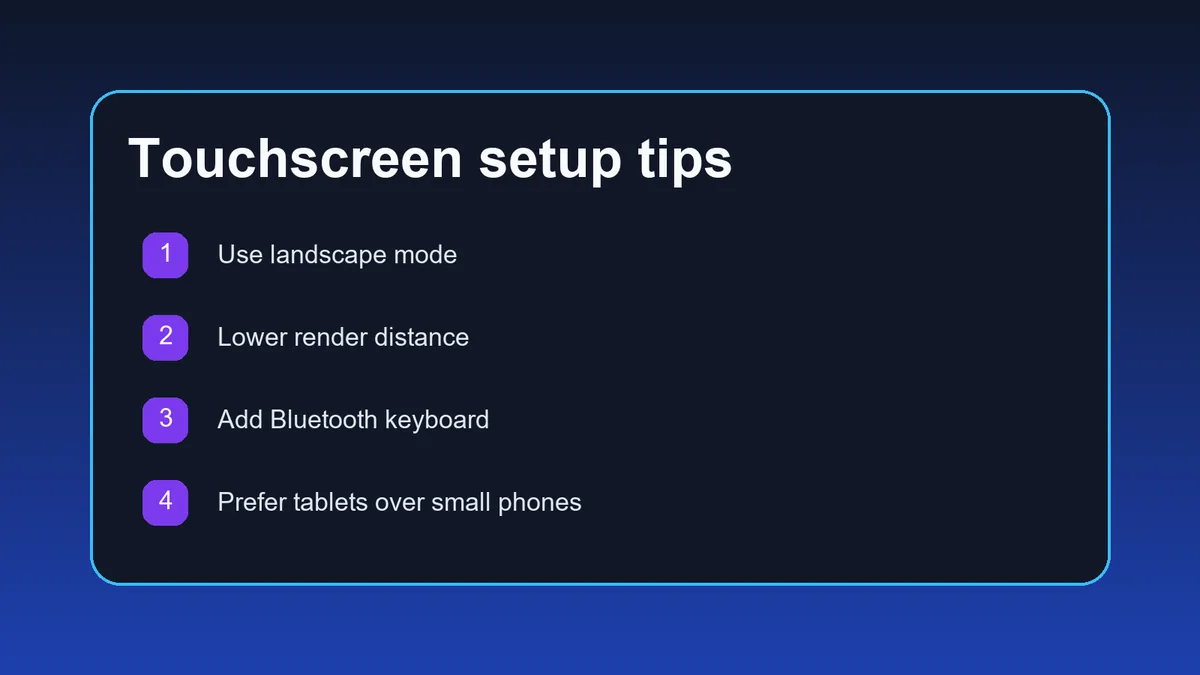
Rotate to landscape mode
Landscape gives more room for the hotbar, inventory, and camera movement. Portrait mode is too cramped for most players. -
Lower expectations for touch-only play
Before entering a world, decide whether you will use only touch or connect a Bluetooth keyboard. Keyboard support changes the experience completely. -
Reduce render distance after loading
Open video settings and lower render distance to reduce stutter, overheating, and battery drain on mobile hardware.
If the game loads but feels unusable, the problem is usually controls rather than compatibility. Add a keyboard before giving up on the device.
Touch Control Tips That Actually Help
Touch controls are the biggest reason players search for a dedicated Eaglercraft mobile guide. These adjustments make the game less frustrating.
| Problem | What Happens | What to Do |
|---|---|---|
| Tiny hotbar and buttons | Mis-taps waste items or open the wrong slot | Use landscape mode and browser zoom only if the UI remains readable |
| Camera drift while mining | You miss blocks or hit the wrong target | Use shorter sessions and avoid PvP on touch-only setups |
| Typing commands in multiplayer | Register and login commands are slow | Pair a Bluetooth keyboard before joining active servers |
| Inventory management | Dragging items feels slow | Keep your hotbar simple and avoid complex sorting on small screens |
How to Improve Performance on Mobile
Mobile performance problems are usually caused by browser memory pressure, heat, and aggressive battery management rather than internet speed alone.
Close every background tab
Mobile browsers aggressively reclaim memory. Keeping only Eaglercraft open reduces reloads and sudden lag spikes.
Lower render distance first
This is the fastest performance win on tablets and phones. Four to six chunks is usually the safe range.
Avoid battery saver mode
Power saving can reduce GPU and browser performance, which makes chunk loading and input delay worse.
Use Wi-Fi for multiplayer
Cellular connections can work, but Wi-Fi is usually more stable for server joins and chat registration.
Take breaks on hot devices
If the phone heats up, browsers throttle performance. Let the device cool down before blaming the server.
Keep sessions realistic
Mobile is best for short or medium sessions. Long building runs and PvP marathons feel better on larger devices.
Can You Play Multiplayer on Mobile?
Yes, mobile multiplayer works if the browser can keep the WebSocket connection stable. The harder part is entering WSS addresses, registering in chat, and reacting quickly enough during combat.
- Use the exact Eaglercraft WSS address from a current server list, not a normal Java IP.
- Expect typing commands like /register and /login to be much easier with a keyboard attached.
- Survival, creative, and social servers are much more forgiving on mobile than Bedwars or PvP-heavy servers.
- If your connection keeps dropping, test on home Wi-Fi before assuming the server is broken.
For mobile multiplayer, the best path is tablet plus keyboard on a slower-paced survival server.
Limits You Should Know Before Committing to Mobile
A good Eaglercraft mobile page should be honest about tradeoffs. Mobile works, but it is still a compromise compared with Chromebook or desktop play.
- Touch-only aiming is weaker for mining, bridging, and combat.
- Inventory and chat are slower on small screens.
- Long sessions drain battery and heat the device quickly.
- Some mobile browsers may reload the tab if memory gets tight.
- A tablet with a keyboard usually beats a phone even if the phone is technically faster.
Need the full beginner walkthrough?
Read the main Minecraft 1.8.8 guide for loading, controls, singleplayer, multiplayer, and performance basics.
Read the Beginner GuideLooking for mobile-friendly servers?
Use the multiplayer guide to find WSS server addresses and choose slower-paced servers that work better on touchscreen devices.
Read the Servers GuideFrequently Asked Questions
References and Further Reading
- Minecraft Wiki - Java Edition 1.8 - Official version context for mechanics and controls
- Our Minecraft 1.8.8 Beginner Guide - Full loading and gameplay walkthrough
- Our Eaglercraft Servers Guide - WSS server address help and multiplayer setup
About the Author
Sophie Hartwell
Sophie writes practical guides about browser gaming and lightweight web apps. For this article, she reviewed Eaglercraft mobile behavior on phone-sized screens, tablets, and keyboard-assisted mobile setups.
Last reviewed: May 2026 - Focus: browser-based Minecraft on touch devices
Ready to Test Mobile Play?
Open the game in landscape mode, lower render distance, and keep your first session simple. If you want a smoother setup, pair a keyboard before jumping into multiplayer.