How to Enable Singleplayer on Eaglercraft
A practical singleplayer guide for creating your first Eaglercraft world, keeping saves safe in browser storage, exporting backups, and knowing when to switch to multiplayer.

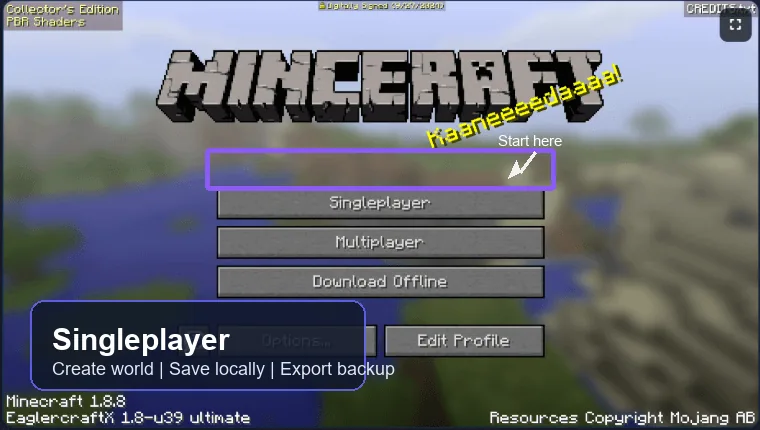
Table of Contents
How to Enable Singleplayer on Eaglercraft
Most current Eaglercraft 1.8.8 builds have Singleplayer on the main menu. You usually do not need a separate plugin, launcher, or server. The task is to open a build that actually supports singleplayer, let the browser finish loading its assets, and create a local world.
-
Open the Eaglercraft page
Use a current Chrome, Edge, or Chromium browser when possible. Wait until the Minecraft-style menu is visible instead of refreshing during the first load. -
Click Singleplayer
Choose the Singleplayer button from the main menu. If the button is missing, you are probably using an older multiplayer-only build or a page that removed the feature. -
Create a new world
Select Create New World, enter a short world name, choose the mode, and start. The first terrain generation can take longer than the menu load. -
Test saving before a long session
Place or break a block, exit to the title screen, then reopen the world. This quick check confirms that browser storage is working. -
Export a backup when available
If the client provides an export, download, or EPK save option, use it before clearing site data, changing devices, or relying on a school-managed browser profile.
Singleplayer is local. If you change browser profile, clear site data, or use private browsing, your worlds may disappear even though the game itself still loads.
Which World Mode Should You Pick?
The best first world depends on what you want to learn. Eaglercraft singleplayer is useful because you can test controls and performance without server lag or chat registration.
| Mode | Best for | What to expect |
|---|---|---|
| Survival | First real playthrough | You gather resources, craft tools, build shelter, and learn the normal Minecraft loop. |
| Creative | Controls and building | You can fly, place blocks quickly, and test settings without worrying about hunger or hostile mobs. |
| Hardcore | Experienced challenge runs | One death can end the world, so use it only after you know the controls and performance are stable. |
| Test world | Troubleshooting | Create a disposable world when checking graphics, storage, or keyboard problems. |
How Eaglercraft Singleplayer Saves Work
Eaglercraft runs inside the browser, so singleplayer worlds are stored by the browser rather than by a normal Minecraft launcher folder. That is convenient on Chromebooks, but it also means your save depends on the same browser, same site, and same profile.
A world can seem missing after clearing browsing data, switching from normal mode to private mode, using a different mirror domain, or signing into a different managed profile. Treat browser storage as a working save location, not as your only backup.
Same browser profile
Return to the exact browser and profile where the world was created. A school or guest profile can store data separately.
Same site address
World storage can be tied to the site origin. Moving between mirrors may show an empty world list.
Site data matters
Cleaning cookies, cache, or storage for the site can delete the local world data.
Exports are safer
An exported EPK or world file gives you a portable backup outside browser storage.
How to Back Up or Move an Eaglercraft World
If your world matters, export it before you troubleshoot. Names vary by build, but the idea is the same: create a downloadable copy, keep it somewhere safe, then import it when needed.
-
Open the world list
Go to Singleplayer and select the world you want to protect. -
Look for export or backup
Use the client's Export, Download, Backup, or EPK option if it is available in that build. -
Save the file outside the browser
Put the file in Downloads, cloud storage, or a USB drive. Rename it with the world name and date. -
Test import with a copy
Before deleting the old world, import the backup as a test and confirm it loads. -
Back up before clearing data
Never clear site data, reset a managed browser, or change devices until the exported file is confirmed.
Can You Turn a Singleplayer World Into Multiplayer?
A singleplayer world is private and local by default. To play it with friends, you need either a build that supports shared worlds or a compatible hosted server workflow. The right choice depends on whether you only want a short session or a persistent server.
| Option | Best for | Advantage | Tradeoff |
|---|---|---|---|
| Shared world invite | Quick co-op test | Easy when the client supports it | Availability depends on the exact build and network. |
| Public server | Meet friends fast | No hosting setup | You do not control the world or rules. |
| Private server | Persistent friend world | More control and fewer strangers | Requires hosting and Eaglercraft-compatible WSS support. |
| Export then import/server setup | Moving a local world | Keeps your existing progress | Requires careful version and file compatibility checks. |
For most players, learn singleplayer first, then read the Eaglercraft servers guide when you are ready for public or private multiplayer. Do not paste private passwords or personal details into random server chats just because a world transfer sounds convenient.
Common Singleplayer Problems and Fixes
Singleplayer issues usually come from browser storage, WebGL performance, or an old build. Work through the simple checks before downloading another random copy.
| Problem | Likely cause | What to try |
|---|---|---|
| Singleplayer button is missing | Old or modified build | Use a current 1.8.8 build that lists singleplayer support. |
| World disappears | Site data cleared, different profile, or different mirror | Return to the original browser profile and restore from an exported backup if you have one. |
| World crashes while loading | Memory pressure or graphics issue | Close tabs, lower render distance, disable heavy extensions, and test a new world. |
| Controls feel delayed | Low-power device or overloaded browser | Close background tabs, keep the page focused, and test Creative mode before Survival. |
| Export file will not import | Wrong build or corrupted download | Try the same version first and keep the original export file unchanged. |
Singleplayer Safety and Storage Tips
Singleplayer is safer than public multiplayer because you are not sharing chat or server accounts, but you still need to protect your saves and device.
- Do not rely on private browsing for long-term worlds because storage may be erased when the session closes.
- Avoid unknown downloadable clients when the browser version already supports singleplayer.
- Export important worlds before major browser updates, school device resets, or storage cleanup.
- Use a separate test world when changing graphics settings or trying a new build.
- Respect school, work, or library device policies even when the game runs in a browser.
Frequently Asked Questions
References and Further Reading
- EaglercraftX project documentation - Project source and build context for EaglercraftX 1.8.8
- Minecraft Wiki: Java Edition 1.8 - Version feature background for the Minecraft era Eaglercraft 1.8.8 emulates
- Eaglercraft Servers Guide - Next step when you want to move from singleplayer to multiplayer
About the Author
Sophie Hartwell
Sophie writes practical guides for browser games and lightweight web technology.
Last reviewed: June 2026 - Focus: Eaglercraft 1.8.8 singleplayer, browser saves, world backups
Ready to Create a World?
Open Eaglercraft, start with Singleplayer, and export a backup before your world becomes important.