Eaglercraft Mods Guide: What Works, What to Avoid, and How to Check EaglerForge
A practical guide for players searching Eaglercraft mods, EaglerForge, EPK files, browser client compatibility, and safer ways to test modded browser gameplay.

Table of Contents
What Are Eaglercraft Mods?
Eaglercraft mods are add-ons or modified browser clients that change how an Eaglercraft-style Minecraft experience behaves in the browser. Players usually search for them because they want a minimap, performance tweaks, quality-of-life controls, custom menus, PvP utilities, or a way to load mod packages such as EPK files. The important detail is that browser modding is not the same as installing a normal Minecraft Java mod with Forge or Fabric on a desktop launcher.
A regular Java Edition mod expects the desktop game, a matching loader, and local file access. An Eaglercraft mod has to work inside a web client, inside browser security limits, and often inside a specific version fork. That is why a random file called an Eaglercraft mod may be unusable, outdated, or unsafe even when the keyword looks right. The right first question is not “where is the download button?” but “which client, loader, and version is this mod built for?”
For playeagler.blog, this topic is separate from the existing beginner, download, server, and 1.12.2 guides. The beginner guide explains the basic browser game. The download guide covers offline HTML and mirror safety. The server guide explains WSS multiplayer. This page focuses on modding choices so you can decide whether a modded client is worth testing at all.
If a mod page does not name the loader, supported version, and file type, treat it as unverified until you can test it safely.
| Term | What it usually means | What to check |
|---|---|---|
| EaglerForge | A mod-loader direction for Eaglercraft-style clients | Version support, install path, and project source |
| EPK file | A package format that may contain client assets or mod resources | Whether the target client can import it |
| Modded client | A browser client already changed by somebody else | Source reputation and whether it forces extra installs |
| WSS server | A browser-compatible multiplayer endpoint | Whether server rules allow modded clients |
What EaglerForge Does and Why It Matters
EaglerForge is the name many players encounter when searching for Eaglercraft mods. In plain terms, it represents a loader-style approach: instead of a single fixed client, the player tries to run a client that can inject or load compatible modifications. That sounds similar to desktop Forge, but the browser environment changes the rules. You still need the correct client build, a mod format the loader understands, and enough browser capability to run the result.
Do not assume every EaglerForge result is the same project or the same install path. Some pages explain a loader, some host an injector, some distribute example mods, and some only repeat keywords. A good result should explain what version it targets, whether it is for 1.8.8 or 1.12.2, what file types it expects, and how to remove or reset the test if something breaks.
The safest mental model is to treat EaglerForge as a testing environment rather than a guarantee. If you want stable play, use the normal browser client first. If you want to experiment, use a fresh browser profile or disposable world, keep copies of any important worlds, and record exactly which build and mod file you used.
Good sign
The page names the client version, loader, file type, and removal steps.
Warning sign
The page promises every mod works but gives no version or source details.
Good test
The mod runs in a new singleplayer world before you join a server.
Bad test
You install an unknown executable just to open a browser game.
Safe Install Checklist Before Testing a Mod
Mod searches often attract aggressive download pages because players are willing to click fast. Slow down. A safer modding workflow starts with source clarity, not with a mirror button. Prefer pages that show project notes, release dates, supported versions, and plain file names. Avoid pages that force browser extensions, desktop installers, notification permissions, or unrelated survey steps.
When you already have a file, test it like a temporary experiment. Use a separate browser profile when possible, keep important worlds backed up, and test in singleplayer before multiplayer. If a file changes browser storage or client settings, you want the damage limited to the test profile. If it fails, close the test, clear that profile, and return to the normal play page.
A browser mod should not require a random Windows installer. If the path leaves the browser without a clear reason, stop.
- Read the page title, version notes, and file type before downloading anything.
- Prefer a known project page or documented release over a short-link mirror.
- Avoid executables, forced extensions, notification prompts, and unrelated installers.
- Use a fresh browser profile or a browser you do not use for your main worlds.
- Create a new test world and confirm controls, inventory, saving, and loading work.
- Only consider multiplayer after the client works cleanly in singleplayer.
Version, EPK File, and Server Compatibility
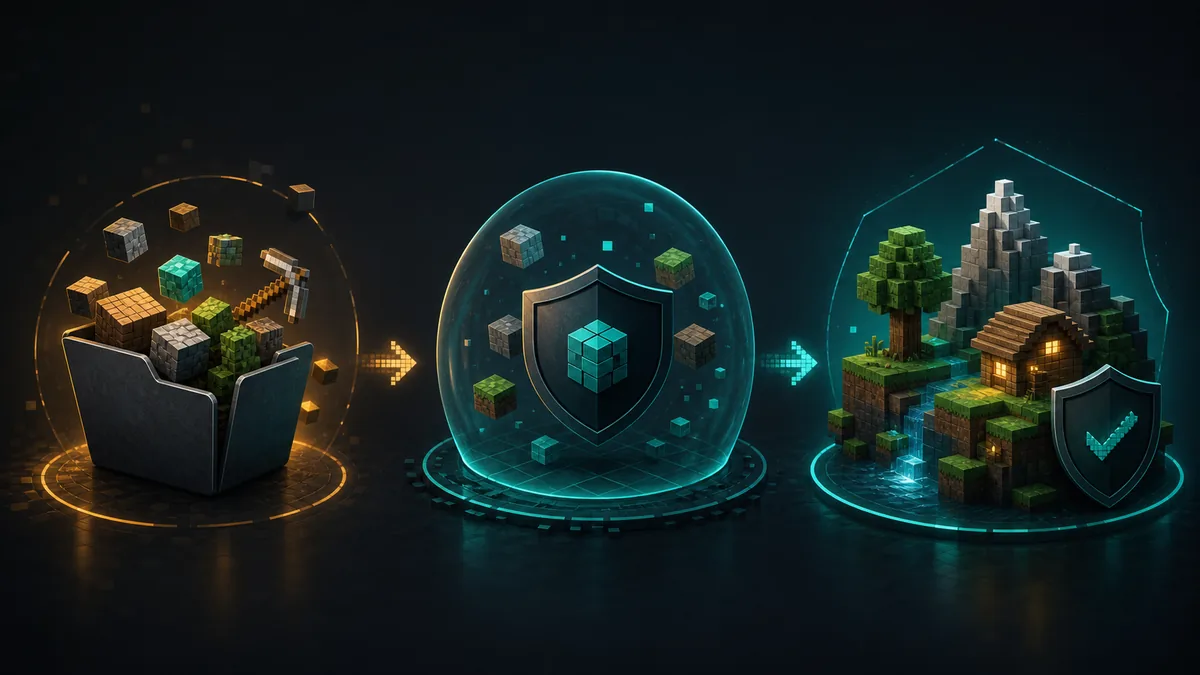
Compatibility is the main reason Eaglercraft mods fail. A mod that mentions 1.12 may not work on a 1.8.8 client. A file described as an EPK may not be a player-installable mod for your specific browser build. A modded client that opens locally may still be blocked by a multiplayer server. Before troubleshooting, separate three layers: the client version, the loader or package format, and the server policy.
If your goal is Eaglercraft 1.12.2 modding, start by reading the version guide first. Later-version clients may have different performance costs and different server expectations. If your goal is PvP or server play, read the server guide and check whether the community allows modded clients. Some client-side helpers may be harmless in singleplayer but unwelcome or banned on competitive servers.
The best compatibility test is boring: one clean browser, one known client version, one mod file, one fresh world. If you change several things at once, you will not know whether a crash came from the mod, the loader, browser storage, WebGL, a server address, or a version mismatch.
| Layer | Question to ask | Best next step |
|---|---|---|
| Client version | Is the mod built for 1.8.8, 1.12.2, or another fork? | Match the mod to the exact client notes |
| Loader | Does the client support EaglerForge or the required package format? | Use the loader documentation, not a random mirror |
| Browser | Does WebGL, storage, and WebAssembly work on this device? | Test the normal client first |
| Server | Does the server allow modded clients? | Read server rules and test singleplayer first |
Common Mod Problems and First Fixes
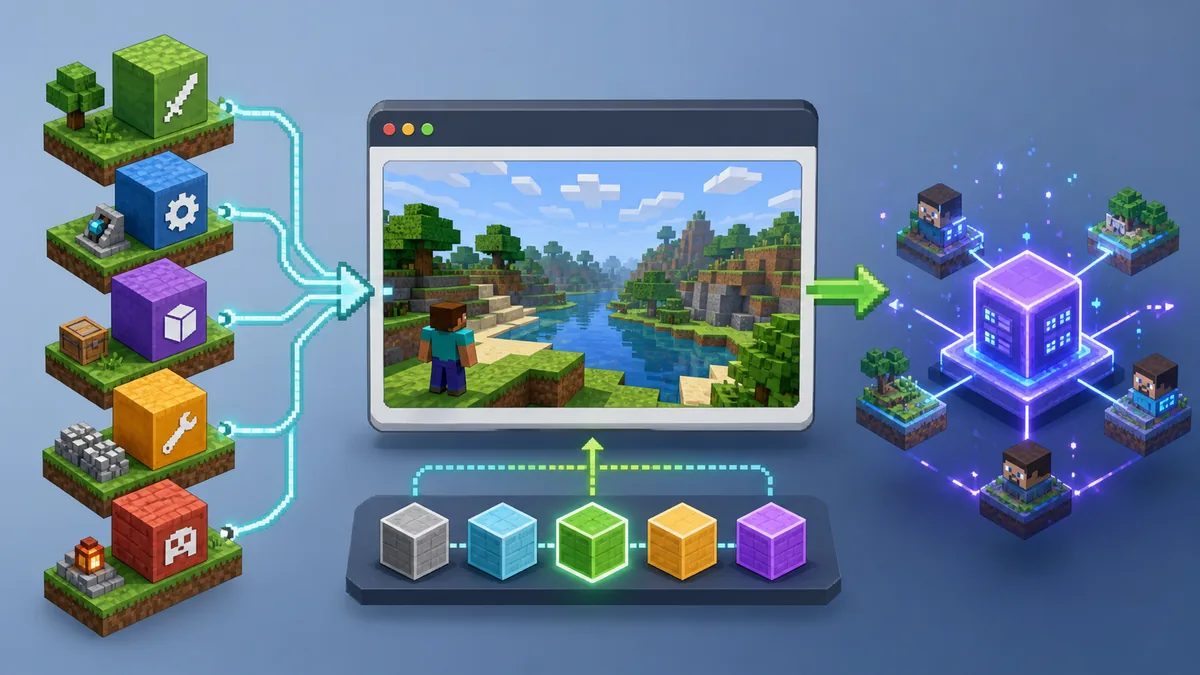
A black screen after adding a mod usually means the client crashed during loading, an asset failed, or the browser blocked something. First confirm that the unmodded client still opens. Then remove the mod and test again. If the base client is broken too, the problem is not the mod; it may be browser storage, cache, graphics support, or a stale build.
A world that opens but behaves strangely may be using client-side code that conflicts with controls, inventory, or rendering. Do not keep testing on your main world. Create a new flat or simple world, lower render distance, and check one feature at a time. If the mod only fails on a server, assume a server rule, address, latency, or version mismatch until singleplayer also fails.
If a mod page gives no removal instructions, your emergency reset is usually to return to the normal browser client and clear the test profile's site data. That can delete local worlds, which is why you should not test with important saves. Browser storage is convenient, but it makes careless mod experiments expensive.
| Problem | Likely cause | First fix |
|---|---|---|
| Black screen | Loader crash, broken asset, or browser block | Remove the mod and test the base client |
| World crashes | Memory pressure or incompatible client code | Use a new test world and lower render distance |
| Server kicks | Server policy or version mismatch | Check rules and test singleplayer first |
| Settings vanish | Browser storage reset or profile cleanup | Back up worlds before testing mods |
When You Should Not Use Eaglercraft Mods
Mods are not the right answer for every player. If you are on a school or shared device, installing unknown files or changing browser profiles can create more trouble than it solves. If you only want smoother play, start with normal performance settings, a modern browser, and fewer background tabs. If you only want multiplayer, the server address and WSS compatibility matter more than a mod loader.
Avoid mods when you cannot verify the source, when the page pressures you into an executable, when the mod claims to bypass server rules, or when the server community bans modified clients. Also avoid modding before you understand how your worlds are saved. Losing a local save because you tested a random file is more frustrating than playing the unmodded client for one more session.
A good modding session should feel reversible. You know what you installed, why you installed it, how to remove it, and which world you used for testing. If any of those pieces are missing, pause and use the standard play page, the download safety guide, or the 1.12.2 guide before going further.
Use mods for controlled experiments, not as a shortcut around safety, server rules, or version limits.
Need a safer file path?
Read the download guide before trusting offline HTML, ZIP, or mirror pages.
Download Safety GuideTesting 1.12.2 mods?
Check version and performance limits before assuming a mod is broken.
1.12.2 GuideJoining servers?
Confirm WSS addresses and server rules before using a modded client online.
Server GuideOnly changing appearance?
A custom skin is usually safer and simpler than a mod or loader when you only want a new player look.
Skins GuideEaglercraft Shaders: How to Enable PBR and Fix Low FPS
Eaglercraft 1.8 includes a browser-oriented PBR shader path, but it needs a compatible build, WebGL 2, enough GPU headroom, and a resource pack that provides PBR textures. Start with the official launcher, test the built-in option before downloading anything, and treat random shader clients as unverified modded builds.
Shaders GuideFrequently Asked Questions
References and Further Reading
- EaglerForge project search on GitHub - Useful for checking source visibility and recent project activity
- Our Eaglercraft Download Safety Guide - How to evaluate HTML files, ZIPs, and mirrors
- Our Eaglercraft 1.12.2 Guide - Version compatibility context
About the Author
Sophie Hartwell
Sophie writes practical browser-gaming guides focused on Eaglercraft versions, safe web play, multiplayer setup, and compatibility decisions. This guide compares modding intent with the site's existing download, server, and version resources.
Last reviewed: June 2026 - Focus: Eaglercraft mod compatibility and browser safety
Test Mods Only After You Understand the File Path
A clean source, matching version, and disposable test world will save more time than chasing every mod download result.