Eaglercraft Skins Guide: Choose, Import, and Test Custom Skins
A practical guide to Eaglercraft skins, 64x64 PNG compatibility, custom skin import, safe downloads, and troubleshooting.

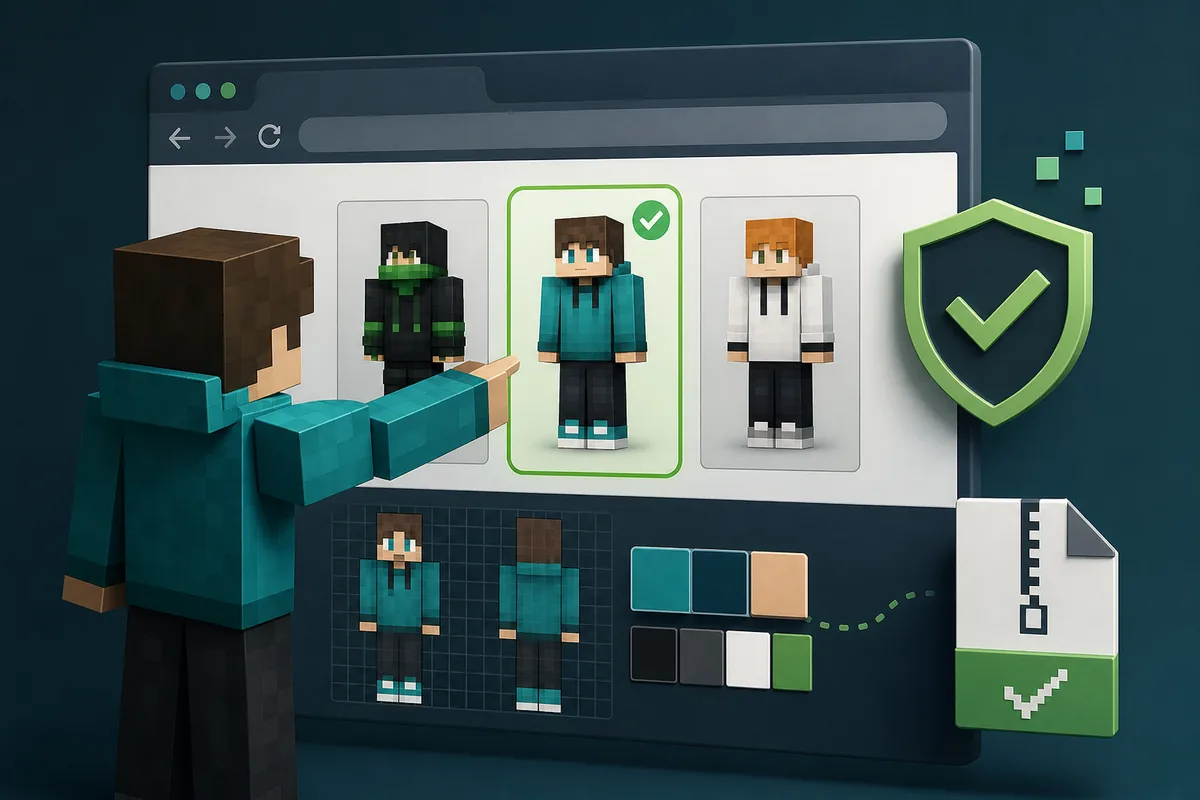
Table of Contents
What Eaglercraft Skins Actually Change
Eaglercraft skins change the appearance of your player character. They do not change block textures, server mechanics, world files, or client code. That makes the intent narrower than Eaglercraft texture packs and much safer than mod or client downloads when you keep the file to a normal skin image.
Most skin searches are really about three questions: where to find a Minecraft-style skin, whether the file works in a browser client, and how to avoid fake download buttons. The answer depends on the client build you are using, because some Eaglercraft versions expose profile or skin settings while others rely on server-side account systems.
This deserves its own guide because the existing texture-pack page covers world visuals, the mods page covers code-level changes, and the download page covers risky installers. A skin is personal character customization, so the safest workflow is smaller: pick one image, import it only where the client supports it, and test before using it on multiplayer servers.
| Search intent | What it usually means | Best action |
|---|---|---|
| Eaglercraft skins | Player appearance PNG or profile skin | Use this guide |
| Eaglercraft texture packs | Block, item, GUI, and world visuals | Use the texture-pack guide |
| Eaglercraft mods | Client code or loader behavior | Use the mods guide |
| Eaglercraft download | HTML, ZIP, APK, EXE, or mirror safety | Use the download safety guide |
Eaglercraft Skin File Compatibility: 64x64 PNG
For Minecraft Java-style Eaglercraft skins, a 64x64 PNG is the safest starting point. Some libraries still offer 64x32 classic layouts, but a modern 64x64 file is easier to inspect and more predictable in clients that support custom skins.
Look for a direct image preview and a download that produces the actual PNG. A skin file should be small and easy to identify; it should not arrive as an EXE, APK, extension, survey bundle, or unrelated archive. The search phrase skins for Eaglercraft is about a character image, not a new client.
If a skin works in a preview but not in multiplayer, the server may cache or replace player skins. Test the same file locally, confirm the client supports custom skins, and check server-specific profile rules before downloading another file.
| Check | Good sign | Risk sign |
|---|---|---|
| File type | PNG image file | EXE, APK, extension, or ZIP with unknown contents |
| Dimensions | 64x64 skin layout | Random image size or poster artwork |
| Source | Preview, creator info, direct image download | Only a large download button or login gate |
| Use case | Profile or local skin setting | Claims to unlock gameplay or bypass servers |
How to Import Eaglercraft Skins Safely
The control name depends on the Eaglercraft build: profile, skin, cape, or a server account menu. If the option is missing, do not install a separate program to force it. Use a client or server profile system that clearly supports custom skins.
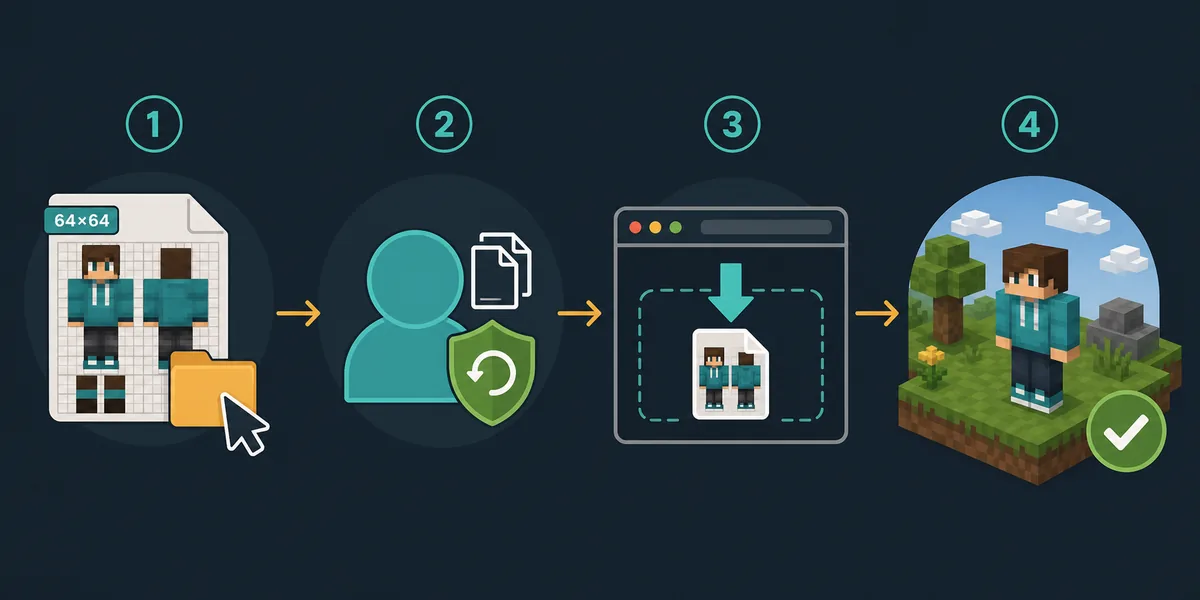
Import one PNG at a time, keep a backup of the original file, and test in singleplayer or an empty lobby. Check the front, back, arms, and head layers before using the skin with friends. This simple example is safer than changing several files at once.
If multiplayer is slow to update, wait for server caching instead of clearing all browser data. Site storage may also contain worlds and settings. A reversible skin test should not destroy a saved world.
- Download or create one 64x64 PNG skin from a trustworthy source.
- Open the profile, skin, or account menu in a client that supports skin changes.
- Import or select the PNG without renaming it into an executable or archive.
- Test the skin locally and check front, back, head, and arm layers.
- Only use it on multiplayer after confirming the server allows and displays custom skins.
Download Safety: What to Avoid When Searching for Skins
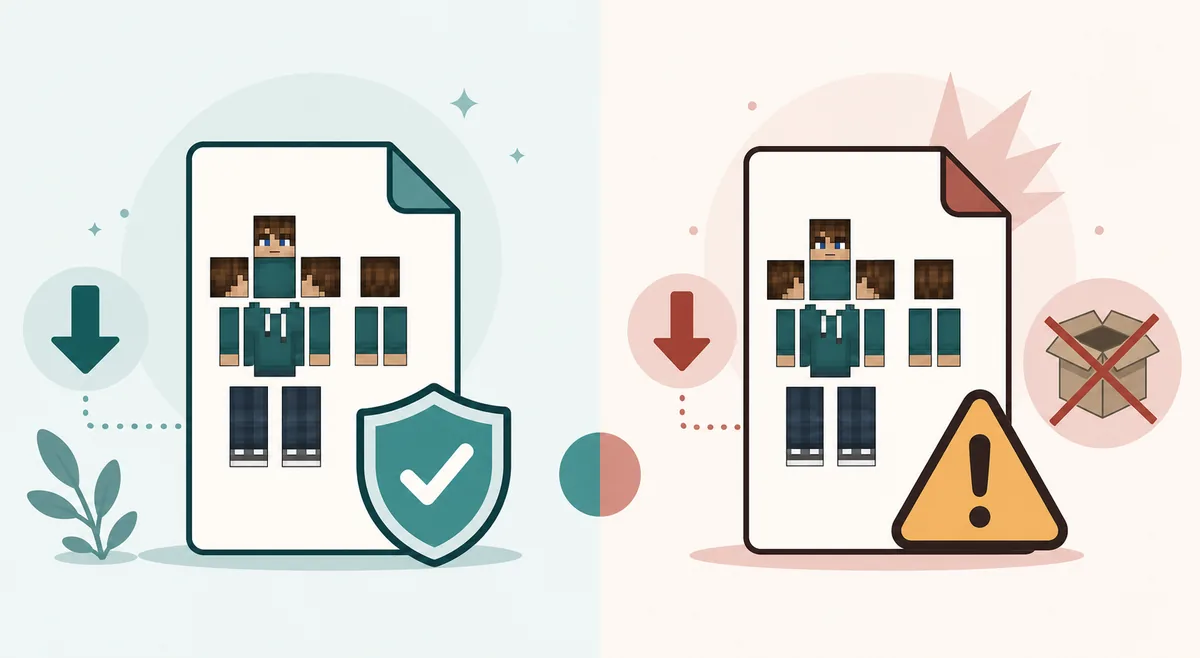
Similarweb and Semrush both show meaningful search demand around Eaglercraft skins, but search demand also attracts thin download pages. Treat skin downloads conservatively. A skin should normally be a PNG image. It should not require a desktop launcher, Android APK, browser extension, survey, password, or notification permission.
Be especially careful with misspelled pages, mirrored files, and bundles that claim to include skins, capes, clients, and performance boosts together. That is no longer a skin file; it is a software download decision. If you are unsure, use the download safety guide before touching the file.
For younger players and school Chromebook users, the safest path is to use a well-known Minecraft skin library only for previewing and downloading image files, or to create a simple skin in a browser editor and save the PNG. Do not sign into unknown sites with school, Microsoft, Discord, or Google accounts just to get a skin.
Better choice
Direct PNG skin download, visible preview, clear 64x64 layout, no account required.
Riskier choice
Installer bundles, APK or EXE files, browser extensions, surveys, shortened links, or vague mirror pages.
For multiplayer
Check whether the server displays custom skins or uses its own account/profile system.
For privacy
Avoid uploading account credentials or personal photos to unknown skin sites.
Common Skin Problems and First Fixes
If the skin does not appear, first confirm that your client build supports custom skins. A missing menu is not fixed by downloading a random skin installer. If the menu exists but the image fails, check the file extension, dimensions, and whether the PNG was downloaded correctly rather than saved as a web page.
If the skin appears distorted, the layout or model type may not match the client. Try a simple 64x64 Java skin before testing slim-arm variants, capes, or layered edits. If only multiplayer is wrong, the server may be caching the old skin or replacing player skins based on its own login system.
If browser performance changes after a skin import, the skin itself is rarely the main cause because it is a small image. More likely, a suspicious page changed settings, added an extension, or pushed a separate download. Remove the suspicious add-on or file and return to a known client.
| Problem | Likely cause | First fix |
|---|---|---|
| No skin menu | Client build does not support local skins | Use a build or server profile that documents skin support |
| Skin file rejected | Wrong file type or damaged PNG | Download the direct PNG again |
| Skin looks distorted | Wrong layout or model variant | Try a basic 64x64 Java skin |
| Multiplayer does not update | Server cache or profile system | Wait, relog, or check server account settings |
When Skins Are Worth Changing
Skins are worth changing when you want a recognizable player identity, a friend group theme, a cleaner look for videos, or a character style that matches your build. They are a lightweight customization layer, so they are a good first experiment before moving into texture packs or mods.
They are less useful when your real goal is higher FPS, better block visibility, multiplayer access, or new gameplay features. Use a low-resolution texture pack for visual readability, the server guide for connection problems, and the mods guide for client behavior changes. Keeping the boundary clear prevents risky downloads.
The best skin workflow is simple enough to repeat: choose a direct PNG, import it in a supported client, test it once, and keep playing. If a page makes the process feel like installing software, it is solving the wrong problem.
Need block visuals?
Texture packs change blocks, items, GUI, and readability rather than player identity.
Texture Pack GuideUnsure about a file?
Use the download guide before trusting APK, EXE, extension, or mirror-style pages.
Download SafetyChanging client behavior?
Mods and loaders are a different risk category from a simple skin PNG.
Mods GuideFrequently Asked Questions
References and Further Reading
- Minecraft Help - custom skins in Java Edition - Official context for Java Edition custom skin expectations
- Minecraft Wiki - Skin - General skin layout and player appearance reference
- Our Eaglercraft Download Safety Guide - How to evaluate risky files and mirrors
About the Author
Sophie Hartwell
Sophie writes practical browser-gaming guides focused on Eaglercraft versions, safe web play, multiplayer setup, and customization decisions. This guide keeps skin files separate from texture packs, mods, and unsafe download bundles.
Last reviewed: July 2026 - Focus: Eaglercraft skin compatibility and safe browser customization
Keep Skin Changes Small and Reversible
Start with a direct 64x64 PNG, test it in a supported client, and use other guides when the problem is texture packs or risky downloads.