Eaglercraft Shaders: How to Enable PBR and Fix Low FPS
A practical guide to built-in PBR shaders, browser requirements, pack compatibility, performance settings, and safe testing.

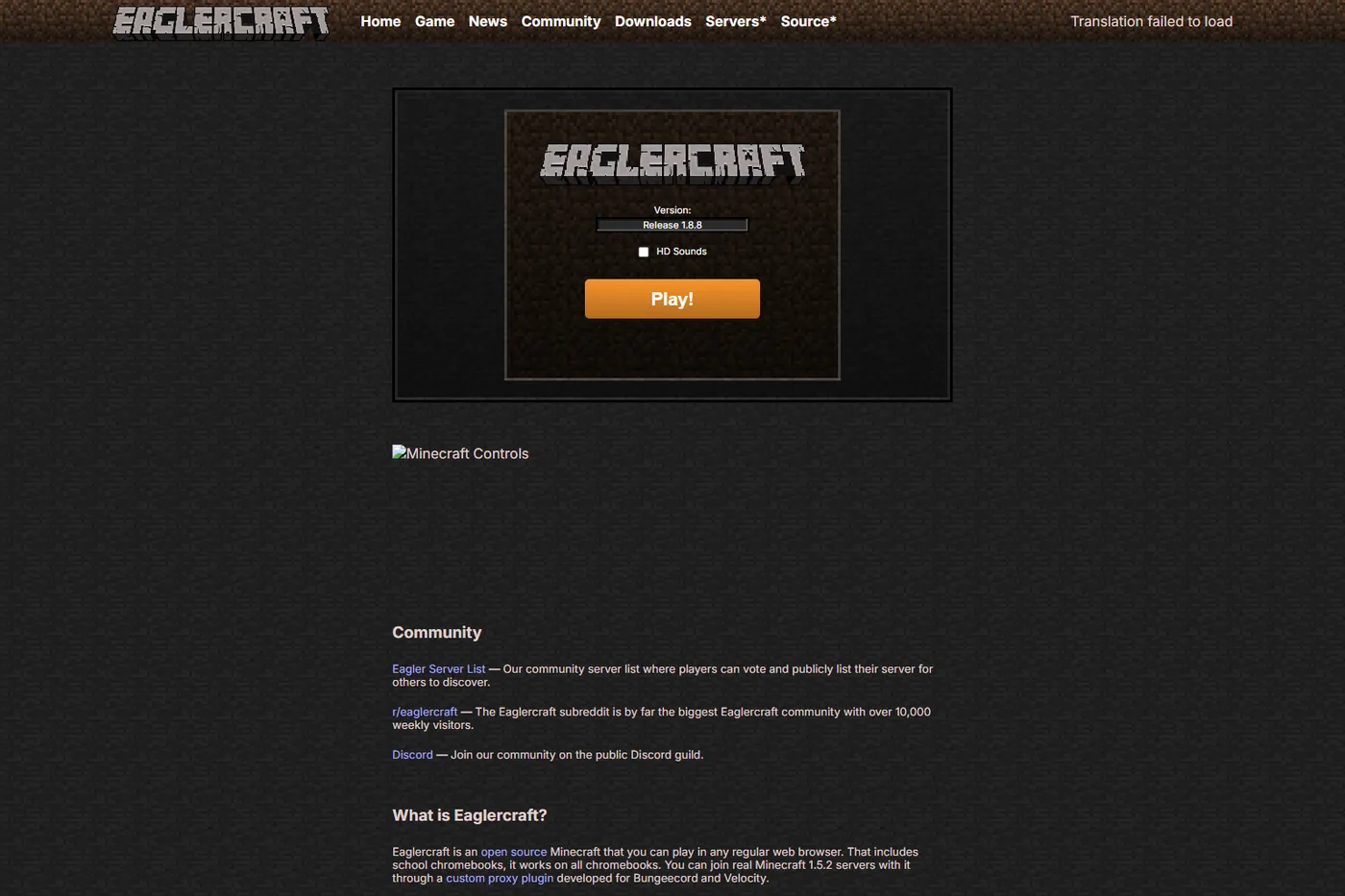
Table of Contents
What Are Eaglercraft Shaders?
Eaglercraft shaders change lighting, reflections, shadows, water, and material detail inside the browser game. The key distinction is between built-in PBR support in compatible Eaglercraft 1.8 builds and a modified client advertised as a shader download. PBR resource packs add material maps; a normal texture pack changes artwork only. Desktop OptiFine or Iris packs do not automatically work in a browser build.
Built-in PBR and third-party shader clients are not the same thing.
Requirements: Version, WebGL 2, and Hardware
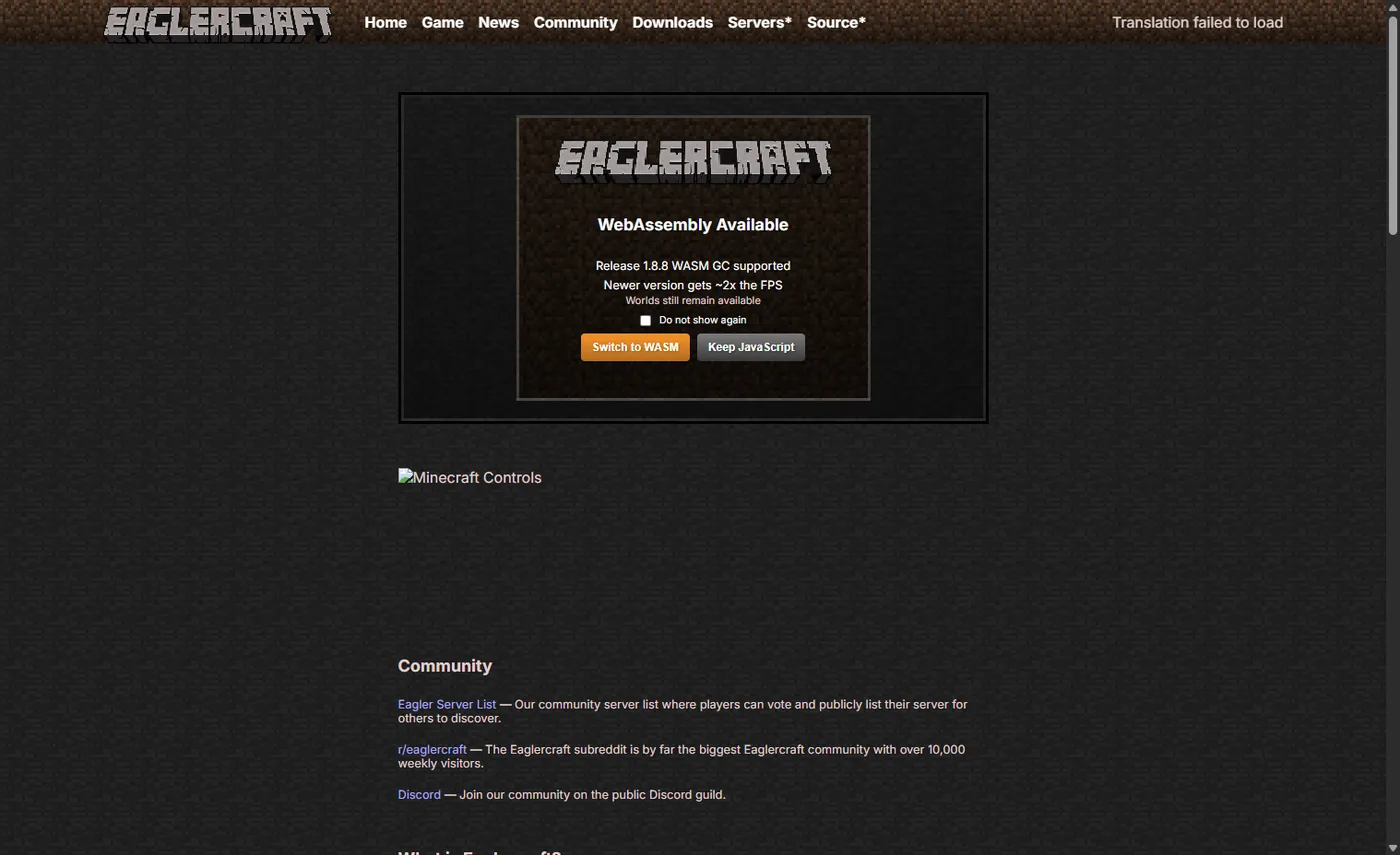
Official Eaglercraft release notes document shader-pack support, PBR textures, reflections, improved water, and automatic fallback on unsupported devices. The official launcher currently exposes Release 1.8.8 and may offer a WebAssembly path. The latest public 1.8 update we verified is u53, published July 7, 2025; no reliable official file size is published for the browser-delivered build. WebGL 2 and hardware acceleration are the practical requirements.
Verified freshness: official 1.8 u53 was published July 7, 2025.
How to Enable PBR Shaders in Eaglercraft
Launch a trusted 1.8.8 build, open video settings, and look for a shader or PBR option. Menu names vary by update, so do not download another client only because a tutorial shows a different button. Test the built-in effect with default resources first, then add one PBR-ready pack at a time. Keep render distance low and use a backed-up test world.
Test the built-in option before adding a pack.
- Launch a trusted 1.8.8 build, open video settings, and look for a shader or PBR option. Menu names vary by update, so do not download another client only because a tutorial shows a different button. Test the built-in effect with default resources first, then add one PBR-ready pack at a time. Keep render distance low and use a backed-up test world.
Shader Packs, PBR Resource Packs, and Compatibility
A standard texture pack can work without PBR, while a PBR pack needs the extra maps expected by the renderer. Many desktop Java shader packs depend on OptiFine, Iris, or GLSL behavior that Eaglercraft does not reproduce. Use the texture-pack guide for ordinary ZIP resources, the mods guide for loader-based clients, and this page for built-in PBR lighting.
OptiFine or Iris packs are not automatically compatible.
| Pack Compatibility | PBR | Browser |
|---|---|---|
| Normal texture pack | No | Usually |
| PBR resource pack | Yes | Compatible renderer |
| OptiFine/Iris shader | Desktop-specific | Usually no |
| Modified client | Varies | Verify source |
How to Fix Low FPS, Black Screens, or Missing Effects
For low FPS, reduce render distance, particles, clouds, smooth lighting, and pack resolution. Close GPU-heavy tabs, connect laptop power, and enable browser hardware acceleration. For a black screen, disable shaders, remove the pack, and test the base client. Re-enable one change at a time, and export local worlds before clearing site data.
Change one variable at a time to find the bottleneck.
WebGL 2
Official Eaglercraft release notes document shader-pack support, PBR textures, reflections, improved water, and automatic fallback on unsupported devices. The official launcher currently exposes Release 1.8.8 and may offer a WebAssembly path. The latest public 1.8 update we verified is u53, published July 7, 2025; no reliable official file size is published for the browser-delivered build. WebGL 2 and hardware acceleration are the practical requirements.
FPS
For low FPS, reduce render distance, particles, clouds, smooth lighting, and pack resolution. Close GPU-heavy tabs, connect laptop power, and enable browser hardware acceleration. For a black screen, disable shaders, remove the pack, and test the base client. Re-enable one change at a time, and export local worlds before clearing site data.
Black screen
For low FPS, reduce render distance, particles, clouds, smooth lighting, and pack resolution. Close GPU-heavy tabs, connect laptop power, and enable browser hardware acceleration. For a black screen, disable shaders, remove the pack, and test the base client. Re-enable one change at a time, and export local worlds before clearing site data.
Pack test
Launch a trusted 1.8.8 build, open video settings, and look for a shader or PBR option. Menu names vary by update, so do not download another client only because a tutorial shows a different button. Test the built-in effect with default resources first, then add one PBR-ready pack at a time. Keep render distance low and use a backed-up test world.
Safe Testing and Download Rules
Prefer the official launcher and official release notes. For community packs, verify the project page, supported build, recent activity, file type, and instructions. A pack should normally be a ZIP or documented asset package, not an EXE, APK, forced extension, or optimizer installer. Respect server rules and keep a reversible backup.
Unknown executables, APKs, and extensions are not normal shader requirements.
Texture pack or PBR pack?
Check ZIP structure and ordinary resource-pack compatibility.
Texture Pack GuideFAQ
References
- Official Eaglercraft News & Updates - Shader support, PBR history, and u53 date
- Official Eaglercraft Launcher - Current browser launcher and Release 1.8.8
- Khronos WebGL 2 Specification - Browser graphics reference
About the Author
Sophie Hartwell
Sophie writes practical browser-gaming guides about compatibility, safe sources, and troubleshooting.
Reviewed: July 16, 2026
Eaglercraft Shaders: How to Enable PBR and Fix Low FPS
Eaglercraft 1.8 includes a browser-oriented PBR shader path, but it needs a compatible build, WebGL 2, enough GPU headroom, and a resource pack that provides PBR textures. Start with the official launcher, test the built-in option before downloading anything, and treat random shader clients as unverified modded builds.