Eaglercraft Maps: EPK Imports, 1.8.8 Compatibility, and Safe Sources
A practical guide to finding community map ideas, recognizing world files, and testing a map in a separate browser world before you keep it.

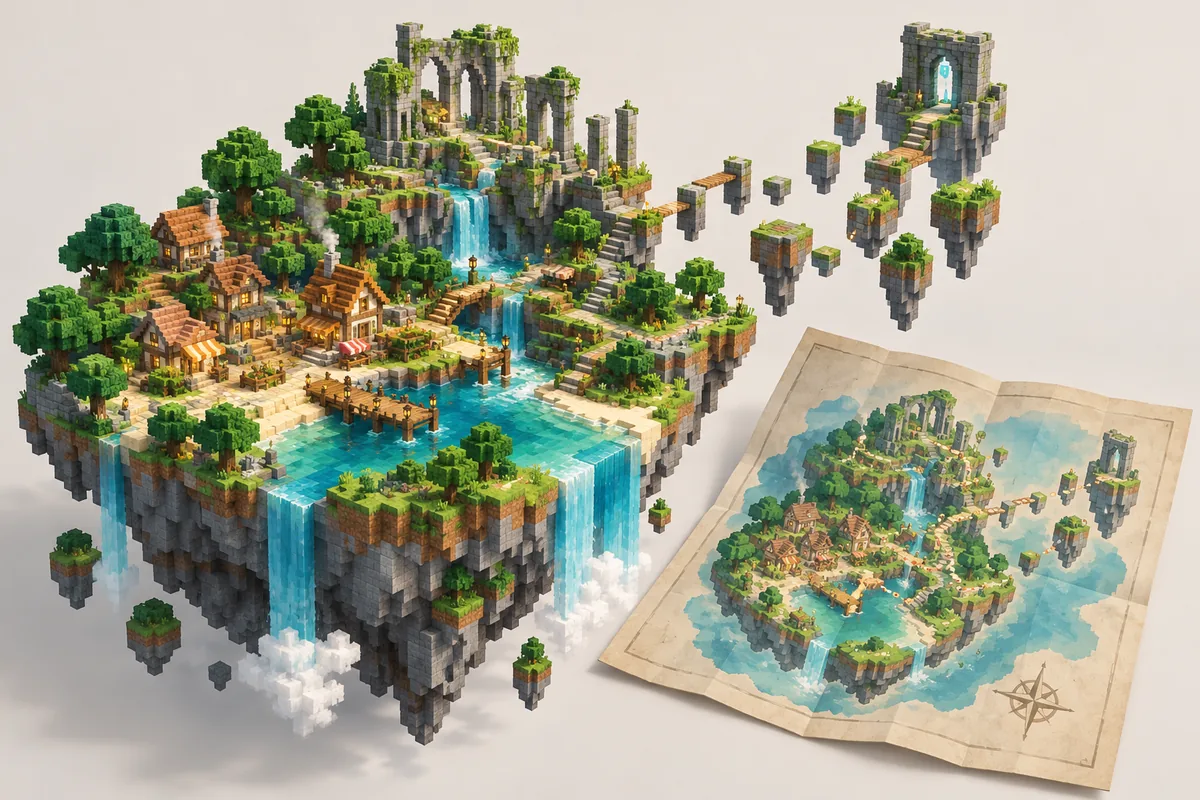
Table of Contents
What Are Eaglercraft Maps?
A map is a saved Minecraft world arranged for a particular experience: survival, parkour, an adventure route, a puzzle, or a build showcase. Eaglercraft is a browser client, so the important question is not only what the map looks like. You also need to know which Minecraft version it targets and whether its world data is packaged in a format that your client can import.
An 1.8.8 tag helps narrow the search, but it does not prove Eaglercraft compatibility. The listing may target Java Edition, rely on commands or resource packs, or provide a folder instead of an EPK. These are community examples, not maps tested or guaranteed for Eaglercraft.
Do not replace a world you care about just to find out whether an unfamiliar map loads. Make a backup and test the copy first.
Where to Find Eaglercraft Maps and Files
Start with a source that shows who uploaded a map, when it was posted, which Minecraft version it targets, and what the download contains. Community catalogs such as MinecraftMaps and Planet Minecraft can help you find Eaglercraft maps or 1.8.8 projects. They are third-party directories, not an official map library, so inspect each project page and download details instead of trusting a search snippet or thumbnail.
Check the project description, screenshots, update date, version notes, and archive name. A familiar title or high download count does not prove safety or browser compatibility. Avoid unrelated installers, requests to disable browser protections, or APK/EXE claims for a browser game. If the source is unclear, skip the file.
| Listing detail | Useful signal | What it does not prove |
|---|---|---|
| Minecraft 1.8.8 tag | A possible version match | That the world was tested in Eaglercraft |
| EPK file clearly described | The archive may suit Eaglercraft world import | That the file is trustworthy or unmodified |
| Screenshots and changelog | The creator documents the project | That every feature works in your browser |
| Installer or unrelated mirror | Little useful compatibility evidence | That an executable is needed or safe |
Check Eaglercraft Maps for 1.8.8 Compatibility Before Importing
Match the map to the Eaglercraft version you intend to use. A map created for a newer Java release may contain blocks, entities, commands, or world settings that an older client cannot represent correctly. A 1.8.8 label narrows the gap, but it still does not verify that the archive was exported in a compatible world format or that custom content is included.
Check resource-pack, command-block, server-plugin, or Java-only requirements. Missing packs can remove textures; plugins may be needed for map mechanics. Record the source URL, creator, version note, and file name with your backup so you can trace problems after import.
- Read the map's supported Minecraft version and last update note.
- Check whether the creator requires a resource pack, plugin, or special server setup.
- Confirm the archive is a world file that your Eaglercraft client can import.
- Keep your original save and downloaded archive unchanged until a test world loads correctly.
EPK, ZIP, and Java World Folders Are Not Interchangeable
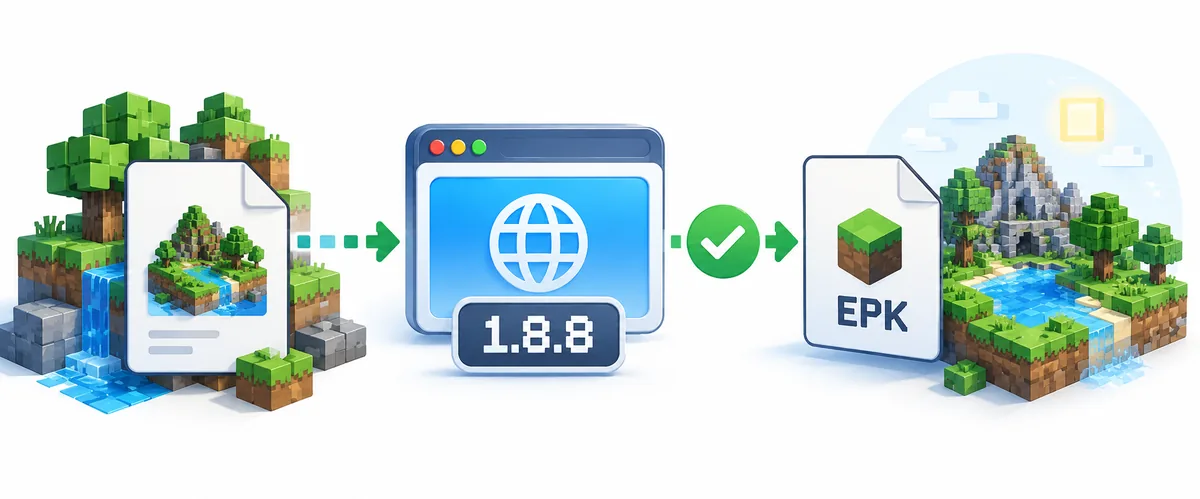
Eaglercraft documentation describes EPK as a format for moving browser worlds between compatible Eaglercraft sites or devices, while ZIP can be used in supported transfers between Eaglercraft and vanilla Minecraft 1.8. That distinction is useful, but it does not mean every ZIP found in a map directory is a ready-to-import Eaglercraft world. A ZIP might contain screenshots, a resource pack, several nested folders, or a Java world folder with a different structure.
Before opening an archive, check its extension, source, and contents with your normal operating-system file viewer. Do not execute a file to inspect a map. If the download is a Java world folder rather than a documented EPK, follow the creator's legitimate conversion or transfer instructions only when you understand them; otherwise stop and find a map packaged for your client. Renaming an extension does not convert the world data.
Import and Test an Eaglercraft Map Safely
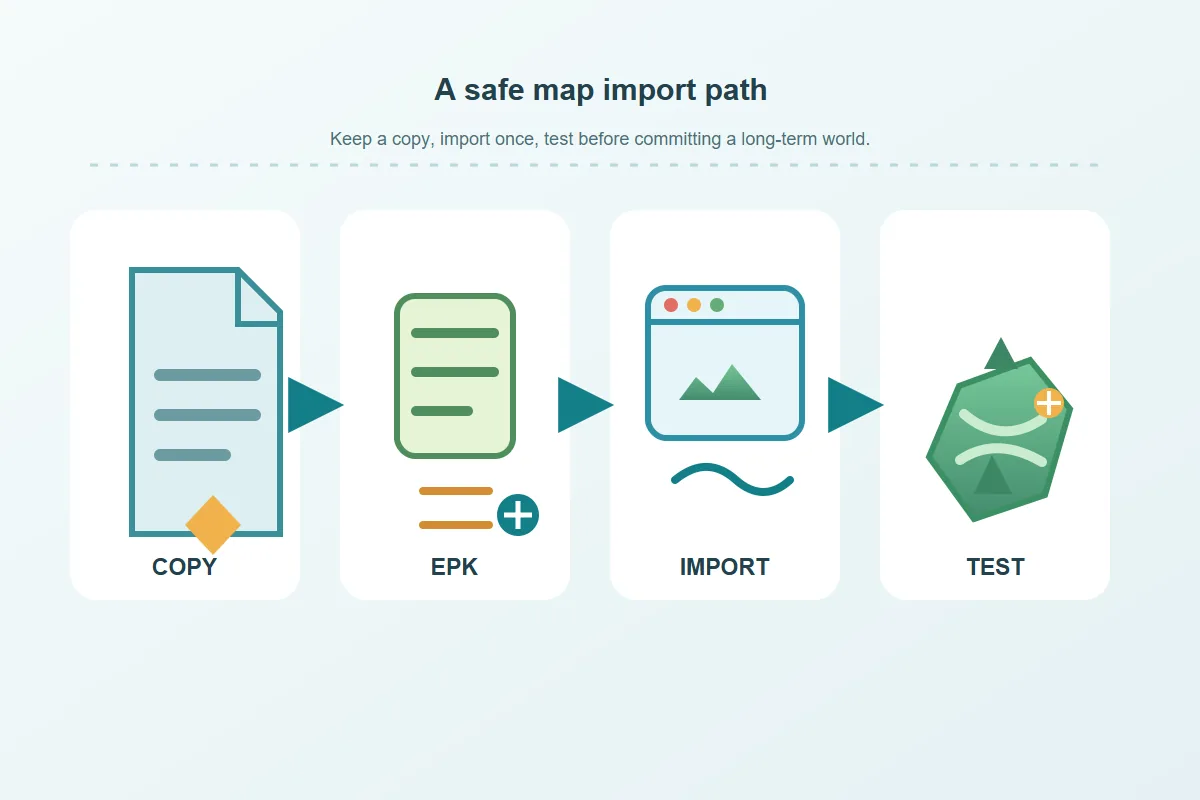
Menu wording changes by client build, so follow its documentation and visible import option. Preserve the original file, then use an empty slot or temporary world and confirm that one map opens before touching a valuable save. Because worlds live in browser storage, the browser profile and site data also affect backups.
Give the imported world a recognizable name and open it once without adding mods or changing several settings. Check the spawn area, inventory, terrain, and any advertised starting instructions. If it loads, make a second backup before continuing. If it fails, record the client version, browser, archive type, and visible error. Do not repeatedly import the same unknown archive or clear browser data while trying random fixes; that can make a recoverable world harder to restore.
An imported map can behave differently from its creator's Java or server setup. A successful load is a useful test, not a promise that every command or feature is supported.
- Export or otherwise preserve the world you already care about.
- Keep the downloaded archive in its original form and note its source.
- Use a spare singleplayer slot and the client-supported EPK/ZIP import path.
- Open the map, check the spawn and basic blocks, then export a fresh backup if it works.
- Remove the test world if it is broken; leave your original saves untouched.
Troubleshoot a Map That Will Not Load or Looks Wrong
First separate a file problem from a world problem. If the import menu does not show the archive, confirm that you selected the correct file and that it is actually an EPK or another format supported by the client. If import finishes but the world is missing, check whether the browser profile or site changed since the save was created. Avoid deleting site data until you have exported the worlds you want to keep.
If blocks are missing or behavior is unexpected, compare the Minecraft version and required resource pack with your client. Commands, server plugins, or Java features may be absent. Try the archive once in an empty slot, then stop and ask its creator or choose another source. Renaming the file rarely fixes incompatible data.
| Symptom | Check first | Safer next step |
|---|---|---|
| Archive is not listed | File type and selected folder | Use a documented EPK or stop |
| Map imports but is absent | Browser profile and world slot | Reload the client and check the save list |
| Textures or blocks are missing | Version and required resource pack | Use the matching pack only from a trusted source |
| Map mechanics do not work | Commands, plugins, or server assumptions | Treat unsupported mechanics as a compatibility limit |
| A normal save disappeared | Browser site data or profile changed | Restore from an exported backup; do not clear more data |
Back up Eaglercraft worlds
Learn how browser saves and EPK exports fit into a safer singleplayer routine.
Read the singleplayer guideExplore Eaglercraft seeds
Seeds describe world generation; they are different from downloaded custom maps.
Read the seed guideEaglercraft Maps FAQ
Sources and further reading
- Eaglercraft 1.8.8 browser play and world information - First-party information about browser worlds and EPK/ZIP transfers.
- MinecraftMaps: Minecraft 1.8.8 maps - Third-party community directory; inspect each listing and do not assume Eaglercraft testing.
- Planet Minecraft: Eaglercraft map projects - Community-tagged projects; each creator page has its own version and file details.
About the author
Sophie Hartwell
Sophie writes practical browser-game guides focused on version differences, world backups, compatible files, and troubleshooting. This article separates community discovery from verified Eaglercraft support and recommends testing a copy before changing a saved world.
Reviewed October 23, 2026 - Eaglercraft map sources, EPK transfers, and 1.8.8 compatibility
Keep your browser world recoverable
Back up a world before importing unfamiliar files, and use a separate test slot for community maps.