Eaglercraft Controller Support: How to Use a Gamepad
Check what your browser can detect, what the game can actually control, and where optional community tools fit.

What Eaglercraft controller support actually means
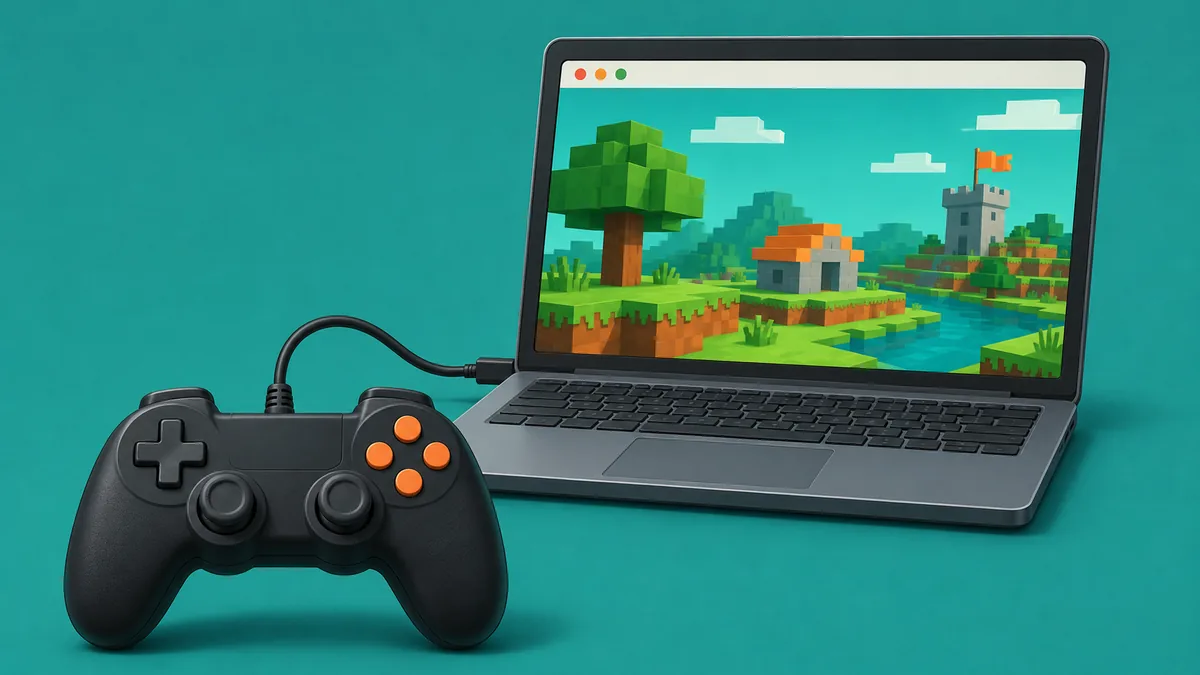
Eaglercraft controller support can mean browser detection or game input mapping. Detection means the operating system and browser see a gamepad. Mapping translates buttons and stick movement into actions the game understands. A controller can pass the first test and still do nothing in the game. This distinction is the starting point for any Eaglercraft controller support check.
Eaglercraft's normal controls are keyboard and mouse. The browser Gamepad API exposes controller state, but game code or an additional script must still read and map it. For Eaglercraft controller support, browser detection is only one part of the input path. MDN documents that browser layer; it does not guarantee that each web game implements controls.
EaglerConsole is a community mapping project labeled proof of concept / early beta, with known gaps such as text entry. Treat it as an optional experiment, not built-in or guaranteed support.
A connected controller is not the same as a mapped controller. Test each stage separately before changing game files or browser settings.
Check your controller and browser before troubleshooting
Before troubleshooting Eaglercraft controller support, confirm the controller works in another trusted game or a local tester. A wired USB connection removes Bluetooth pairing and battery variables. With Bluetooth, pair the device in the operating system.
Use a current desktop browser and keep the game tab in front. Some browsers expose a gamepad only after a button press or stick movement. Privacy settings, virtual machines, remote desktop, and managed devices can affect detection.
Keep a keyboard nearby. Menus, usernames, chat, and server commands require text entry, which community Eaglercraft mappings do not reliably establish.
| Check | What a pass looks like | If it fails |
|---|---|---|
| Operating system | The controller works in another trusted app | Reconnect, charge, or test another cable/USB port |
| Browser focus | The game tab is visible and active | Focus the page, then press a button |
| Page detection | A trusted tester reports a gamepad | Check browser and device privacy settings |
How to test browser gamepad detection
This first Eaglercraft controller support test checks detection, not gameplay. Focus the Eaglercraft page, then press a button or move a stick. A browser may expose the gamepad only after this first input. If a trusted tester sees the controller but Eaglercraft does not react, the missing layer is likely game mapping.
A known gamepad demo in the same browser can confirm whether the browser exposes controller data. It cannot prove that Eaglercraft implements the same mapping. Do not enter credentials, install unknown extensions, or paste code into developer tools to test a controller.
If no tester sees the device, reconnect it, close apps that may be using it, try another USB port, or re-pair Bluetooth. Seeing it only after a button press can be normal privacy behavior.
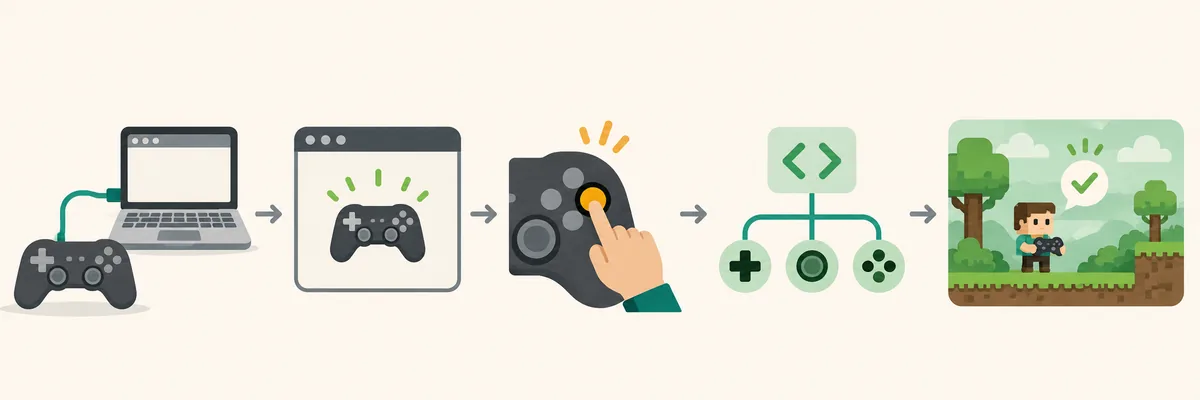
- Connect the controller and confirm it works outside the game.
- Open the Eaglercraft page in a desktop browser and keep that tab focused.
- Press a button or move a stick once so the browser can expose the device.
- Compare with a trusted gamepad tester if the page remains unresponsive.
- Record whether detection works before trying any optional mapping layer.
Choose a realistic Eaglercraft gamepad mapping option
Choosing an Eaglercraft controller support path means weighing reliability against experimentation. Use keyboard and mouse for predictable chat and menus; test a system remapper or community script only in a disposable world.
EaglerConsole documents movement, camera, and menu work but labels itself proof of concept / early beta. EaglerMobile lists gamepad mapping as an intended feature. Neither source guarantees compatibility across builds, controllers, and browsers.
Do not download a random executable or paste unreviewed JavaScript into a console. Read a tool's source and permissions, use a separate browser profile if possible, and never give a controller tool passwords, tokens, or server credentials.
A feature list or demo is not a compatibility guarantee. Check the project notes and test your exact browser and game build.
| Option | Best for | Trade-off |
|---|---|---|
| Keyboard and mouse | Reliable play and text entry | Does not use the controller |
| System remapping | Basic button-to-key experiments | May affect other apps and miss camera or menus |
| Community script | Testing game-specific mapping | Unofficial, experimental, and version-dependent |
Step-by-step: use a controller with Eaglercraft
Use this Eaglercraft controller support checklist to separate hardware checks from optional software changes. It does not assume a mapping extension is required or compatible with every build. Keep keyboard input available.
Use a new singleplayer world so you can test movement, camera, jumping, inventory, and menus without disrupting multiplayer. Change one mapping at a time.
- Confirm the controller works Test it in a trusted tester or another game before changing Eaglercraft.
- Focus the browser page Open the game in a desktop browser and press a button to trigger detection.
- Review an optional project Inspect its source, status, install method, and compatibility notes; avoid reposted scripts.
- Map and test controls Start with movement and jump, then test camera, actions, menus, and inventory one at a time.
- Keep keyboard fallback Test chat and usernames separately. Retest after browser or game updates.
Fix common Eaglercraft controller problems
Eaglercraft controller support problems are easiest to diagnose by locating where input stops: operating system, browser, mapping layer, or game action. Change one factor at a time so cable and focus problems are not confused with script limitations.
If a tester sees the gamepad but the game does not move, mapping may be absent or inactive. If movement works but the camera does not, check right-stick mapping and browser focus. Reconnect the controller if buttons repeat after release.
If inputs work in singleplayer but not on a server, check game mode, permissions, lag, and server rules. Avoid repeated attacks or chat commands while debugging; return to the keyboard if behavior is unpredictable.
| Symptom | Likely layer | Next check |
|---|---|---|
| Tester sees no gamepad | Connection or browser | Reconnect, focus the tab, and retest |
| Tester sees it; game ignores it | Game mapping | Use keyboard or verify compatible mapping |
| Movement works; camera does not | Axis mapping or focus | Check right-stick mapping and page focus |
| Buttons repeat or drift | Controller or mapping | Reconnect and reduce sensitivity |

Limits, privacy, and safe play
Treat Eaglercraft controller support as conditional, not official, when it depends on a browser API or community demo. Scripts can be incomplete or stop working after an update. Compatibility depends on the controller, operating system, browser, game build, and mapping tool.
A controller may be slower for camera aiming, crafting, inventory, chat, and server commands. You can use it for movement and keep the keyboard for text. On phones and tablets, pairing and page focus add variables; see the [mobile guide](/blog/eaglercraft-mobile/).
Use sources you can inspect. Do not install an unknown APK, extension, or executable, or paste forum code into a developer console. Never share credentials with a controller tool.
Keep a keyboard fallback, protect valuable worlds with backups, and never treat a community proof of concept as official support.
Frequently asked questions
Related Eaglercraft guides
Eaglercraft on mobile
Compare touch controls, keyboard pairing, and phone or tablet limitations.
Play Eaglercraft with friends
Choose between a shared world and a server for multiplayer sessions.
Eaglercraft lag fixes
Troubleshoot performance problems separately from controller input issues.
Sources and related guides
- MDN: Using the Gamepad API — Browser gamepad connection events and state access
- EaglerConsole community project — Project describes itself as proof of concept / early beta
- EaglerMobile project notes — Gamepad mapping appears as an intended feature in the project notes
Test the controls in a low-risk world
Keep a keyboard connected, verify one input at a time, and use standard controls whenever an experimental mapping behaves unpredictably.