How to Play Eaglercraft with Friends
A practical guide to shared worlds, server play, version matching, invite details, relay limits, and common connection fixes.

On this page
Choose a multiplayer path first
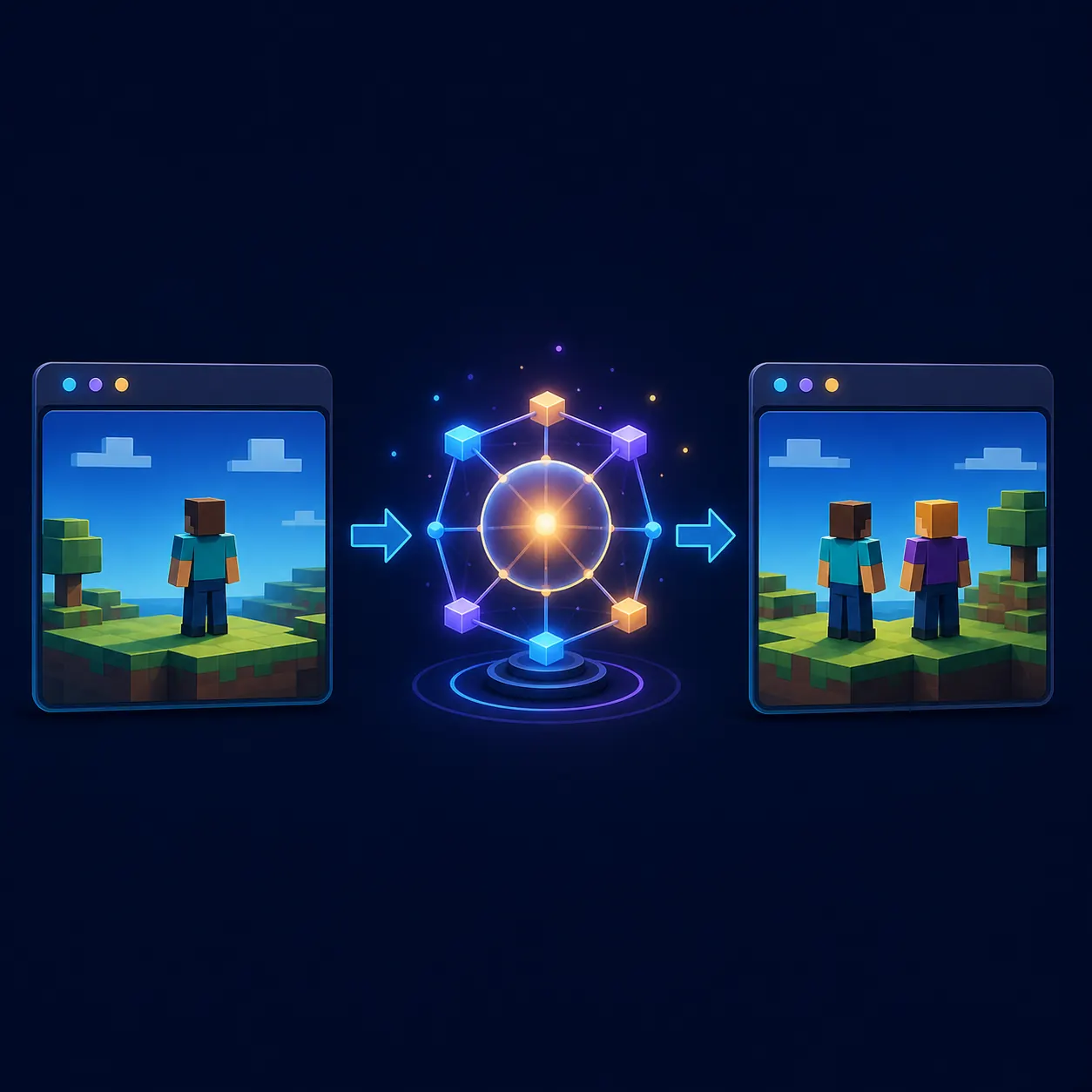
If you are searching how to play with friends on Eaglercraft, decide what kind of session you want before copying an address or installing anything. A shared world is usually the simplest choice for two or a few friends who want a short private session. A server is better when the world should stay available, when several people may join at different times, or when you need a familiar lobby and chat system.
The two paths can look similar in search results, but they solve different problems. A shared world depends on a host browser, an invite or relay step, and compatible session settings. A server depends on a server address, a working WSS connection, and a client version that the server accepts. Neither path requires a random executable, APK, browser extension, or unrelated installer just to play in a browser.
Start with the lightest route that matches your group. If the host is online and everyone is ready at the same time, test a shared world. If the group wants a persistent build, a public community, or a server-side map, use the server route and keep the invite instructions separate from the shared-world troubleshooting checklist.
| Your goal | Best first route | What matters most |
|---|---|---|
| A quick private session | Shared world | Host availability, invite details, and matching versions |
| A world that stays online | Private or public server | Server address, WSS support, moderation, and persistence |
| A larger community | Public server | Rules, latency, supported client version, and safe account habits |
| A school Chromebook session | Browser-only path | No forced downloads, stable browser storage, and a trusted source |
How to use a shared world
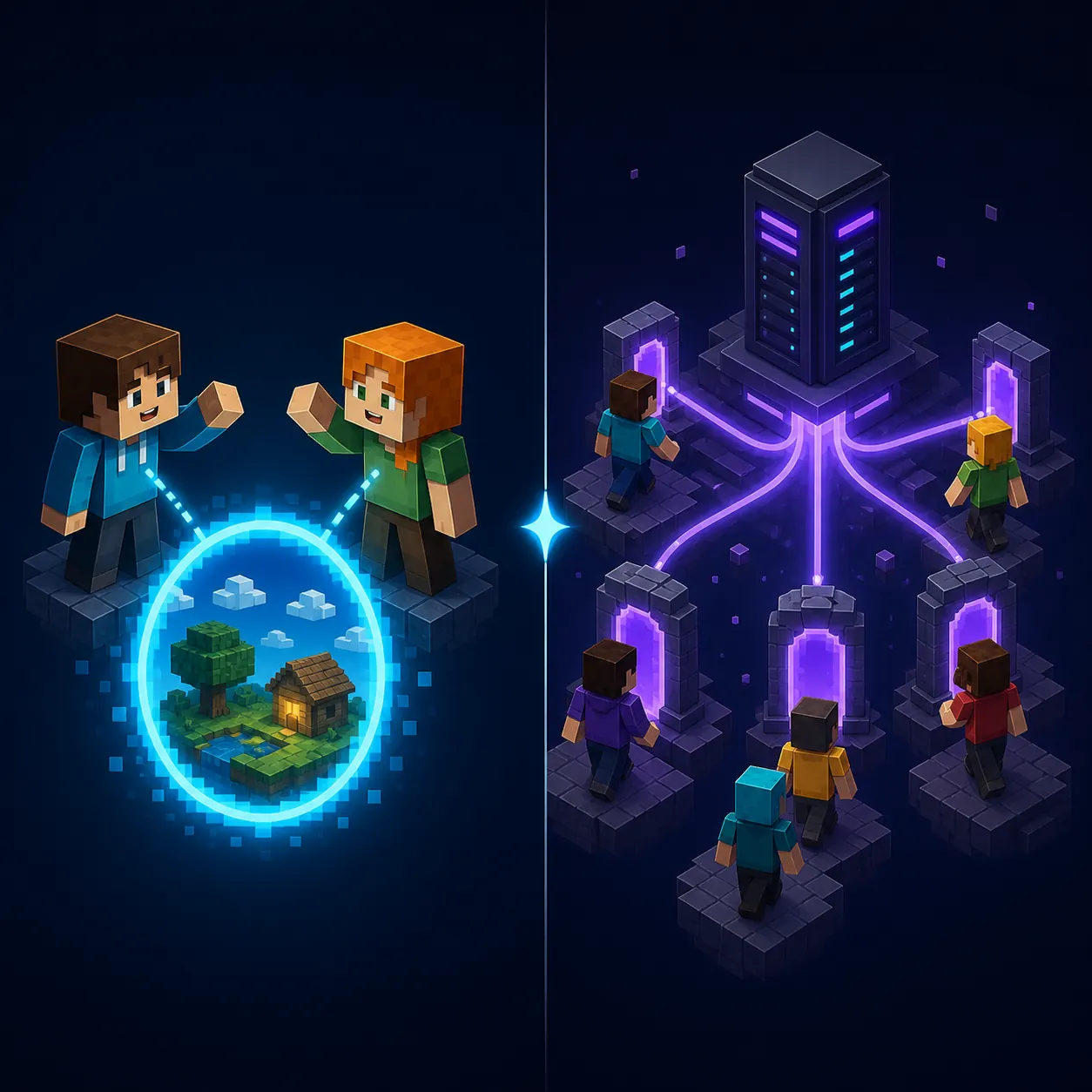
A shared world is the natural starting point for friends who want to build or explore together without managing a dedicated server. Open the same trusted browser client that your group has agreed to use. The host creates or loads the world, opens the supported sharing option, and follows the page instructions to create an invite or relay connection. The friend then opens the matching client and joins through the invitation flow rather than guessing a server address.
Treat the invite as session information, not as a permanent account credential. Send it only to the people who should join, and create a fresh invite when the old one has been exposed or behaves strangely. If the page shows a relay URL, copy it exactly. A missing character, an extra space, or a stale invite can make a working world look unavailable.
Shared worlds are not the same as opening a local Minecraft LAN port. Browser builds may use a relay or a project-specific connection path, and school or work networks can block that path even when ordinary web pages load. If the host can play alone but the friend cannot join, record the exact error and move through version, browser storage, network, and relay checks in that order.
Do not download an EXE, APK, extension, or password tool just to accept a shared-world invite. A browser session should explain what it opens and why.
When a server is better
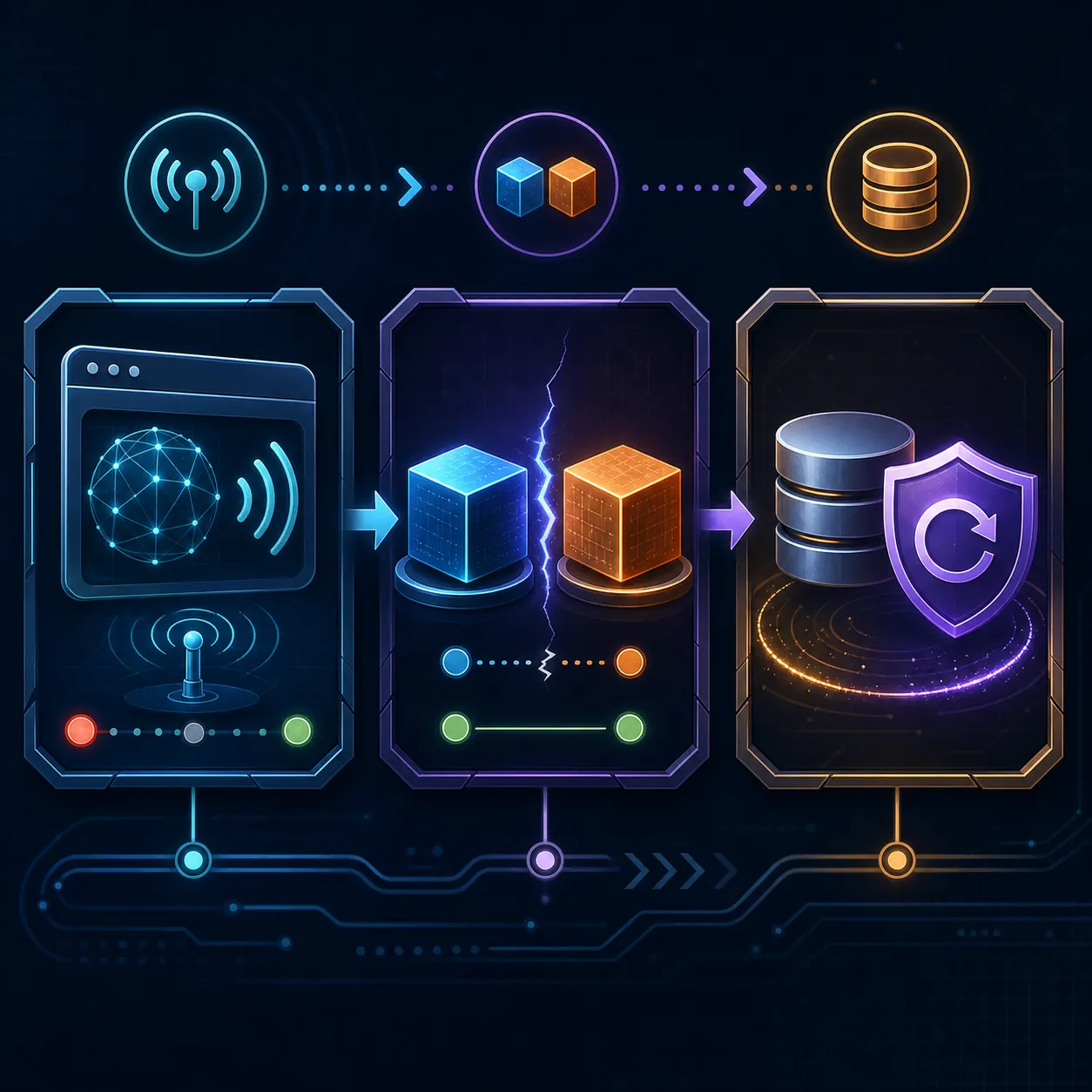
Choose a server when your friends do not need the host to keep one browser tab open, or when the group wants a persistent map, a public lobby, or more players than a shared session comfortably supports. The server route starts with a verified server address and a compatible browser client. Use the existing server guide and server-list guide on this site for WSS checks, address formatting, and the difference between a directory listing and a real reachable server.
A public server is a community space, not a private invite. Read its rules, avoid reusing personal passwords, and do not assume that a name in a search result proves that the server is active or safe. A private server can be a better fit for friends, but it still needs a trustworthy host, a clear address, backups, and a plan for who can join.
Do not mix the server setup question with the shared-world question. If you are trying to join a known server, focus on the address, WSS, client version, and server status. If you only want to play with two friends for one evening, return to the shared-world path before changing DNS settings or downloading server software.
| Route | Typical setup | Common failure |
|---|---|---|
| Shared world | Host world, invite or relay, same client family | Stale invite, blocked relay, or version mismatch |
| Public server | Server address, WSS support, community rules | Offline server, wrong address, or unsupported client |
| Private server | Trusted host, persistent storage, access policy | Missing backups, unclear permissions, or unstable hosting |
Match versions and invite details
Version matching is the fastest check to make before blaming the network. Eaglercraft 1.8.8 and Eaglercraft 1.12.2 are different client families, and a shared world or server may accept only one of them. Ask every player to write down the version shown by the page they opened. Do not infer compatibility from similar branding or from a search result that uses a different version in its title.
The same rule applies to 1.21 and other modern-version claims: do not treat a label as proof that a complete official browser client exists. If a page hides its source, forces a native download, or makes the friend join through an unrelated redirect, leave it. For a normal group session, use the official play entry point or a server whose source and connection instructions are clear.
Before sending an invite, agree on the world host, the client version, the browser, and the exact step where a friend should paste or enter the invite. This short checklist prevents most avoidable confusion and gives you a clean baseline for troubleshooting if the join still fails.
Same version
Ask everyone to open the same supported client family before testing a shared world or server.
Fresh invite
Create a new invite after changing the host world, relay setting, or access list.
Same browser path
Use the same trusted play entry point and avoid mixing a mirror with an official page.
Clear handoff
Tell friends whether they should join a shared world or enter a server address; do not use both instructions at once.
Fix common join failures
If your friend cannot join, test one variable at a time. First confirm that the host is still in the world and that the invite was copied from the current session. Next compare versions and reload the same browser page. If the error mentions a relay, connection, or timeout, test a different trusted network only when that is allowed by your environment; do not install a random VPN or extension as a first response.
Browser storage can also preserve a stale session, old invite, or broken setting. Close duplicate tabs, save anything important, clear only the site data you understand, and reopen the trusted page. If the world is valuable, export or back it up before clearing storage. The existing shared-world-fix guide covers relay URLs, browser storage, version checks, and school-network limits in more detail.
When the server route fails, check whether the address uses WSS, whether the server is online, and whether the page supports your client version. A server-list entry can become stale, so compare the listing with the server's own instructions when available. Keep the exact error message; it is more useful than repeatedly refreshing without changing one known variable.
No invite appears
Return to the host world, create a fresh invite, and share only the current value.
Friend sees a timeout
Compare versions, reload the trusted page, and test whether the relay or network is the failing layer.
World disappears
Do not clear browser data before exporting or backing up important local worlds.
Server will not connect
Check WSS, server status, address spelling, and the client version before changing anything else.
Keep shared play safe and private
Playing with friends should not require giving a mirror site your password, installing a browser extension, or downloading an executable that the page cannot explain. Keep the main game page and any invite flow in the same trusted source context. If a result redirects through several unrelated domains, asks for notification permission, or claims that a native installer is required for browser play, close it and use the official or clearly documented route instead.
Shared-world invites can reveal access to a current session, while public server chats can expose usernames and messages to other players. Use a nickname that does not reveal personal information, do not paste private links into public chat, and remove people from the session when the group is finished. Parents and school administrators may also have rules about browser games and multiplayer communication.
The goal is a predictable session: a verified play page, a matching client version, a limited invite, and a clear fallback when the connection fails. If your friends only need a stable browser game, start with the simplest official path and treat every download or mirror claim as a separate verification decision.
A safe multiplayer guide explains the route, the source, the version, and the limitations. It does not promise that every mirror, server, or modern-version label is trustworthy.
Shared world not working?
Use the focused troubleshooting guide for relay URLs, fresh invites, browser storage, and school-network limits.
Read the Fix GuideNeed a server address?
Compare WSS, server status, and multiplayer setup before asking friends to join a server.
Read the Server GuideLooking for a list?
The server-list guide explains how to check entries and avoid treating stale addresses as live servers.
Open Server List GuideChecking a download?
Use the download safety guide before opening an unfamiliar ZIP, EXE, APK, or mirror page.
Read Download SafetyFrequently Asked Questions
Sources Checked
- Official Eaglercraft play page - Primary browser-play entry point checked for shared-world and version context.
- Official Eaglercraft downloads page - Checked for established version and download paths; this guide does not endorse random mirrors.
About the Author
Sophie Hartwell
Sophie writes practical browser-gaming guides focused on Eaglercraft versions, multiplayer setup, safe downloads, and troubleshooting. This guide was prepared after checking GSC opportunity data, Similarweb phrase-match, related-keyword, and question tabs, current source wording, and the official play/download pages.
Last reviewed: August 6, 2026 - Focus: Eaglercraft friends multiplayer, shared worlds, server choice, and connection checks
Start with the simplest trusted route
Open the browser play page first. If the invite fails, use the troubleshooting guide before changing versions or downloading anything.