Eaglercraft Lag Fix: Improve FPS and Browser Performance
A practical troubleshooting guide for low FPS, stutter, delayed input, slow chunk loading, and browser problems in Eaglercraft.

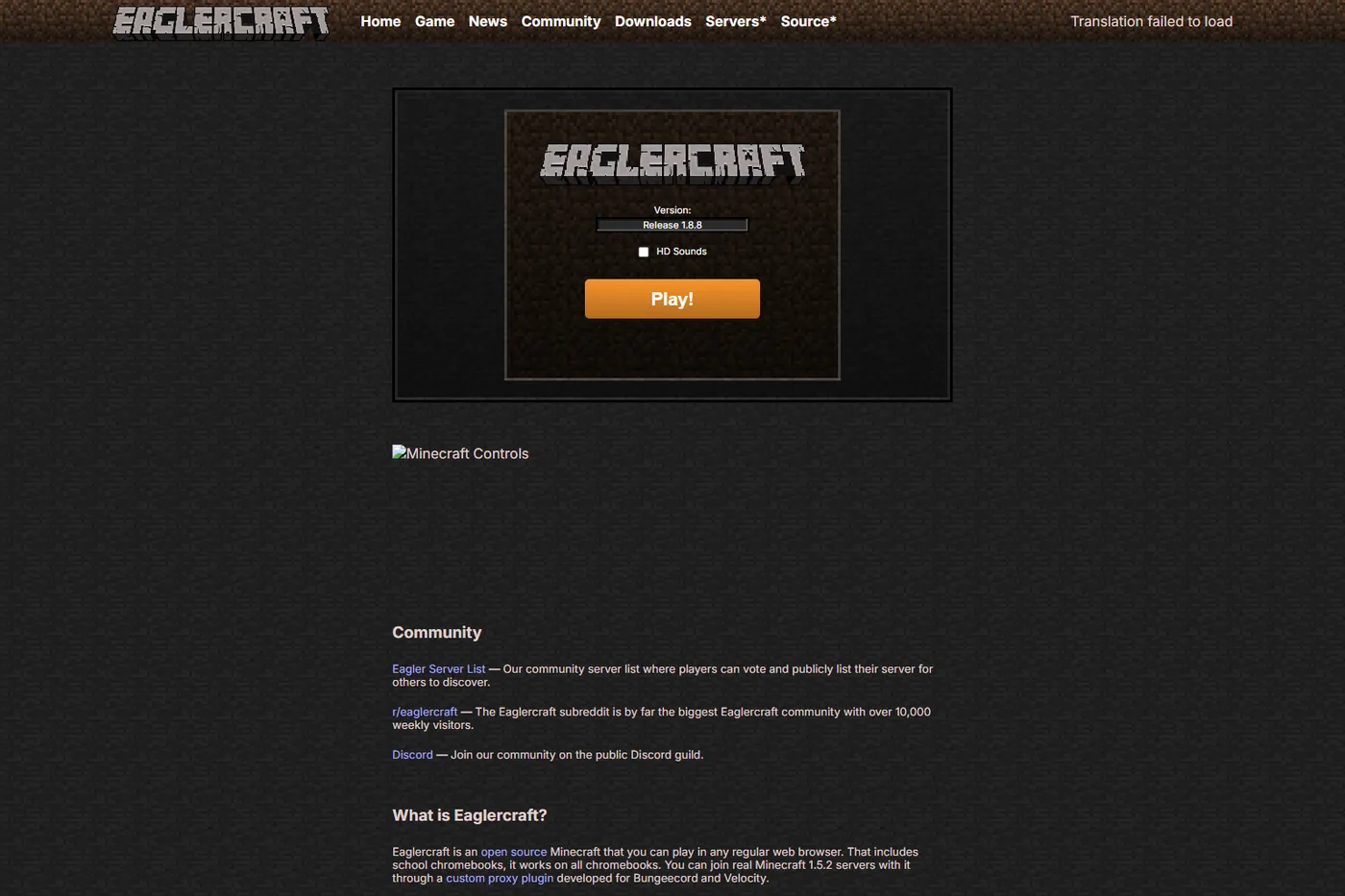
Table of Contents
Why Eaglercraft Lags Even When the Game Loads
Eaglercraft runs Minecraft-style rendering and input inside a browser. That adds another layer between the game and your hardware: the browser must compile WebAssembly, reserve memory, draw the world through WebGL, and share CPU and GPU time with every other tab. A page can therefore load successfully and still stutter when new chunks appear or when you turn quickly.
For an Eaglercraft lag fix, do one short singleplayer test before changing five settings at once. It gives you a baseline and prevents a server connection problem from being mistaken for a graphics problem.
Find the Eaglercraft Performance Bottleneck First
Use the same world, camera direction, and approximate location for each test. Walk for two minutes, turn through a busy area, open the inventory, and place a few blocks. Write down whether the problem is constant or appears only during chunk loading. Then repeat the test in a quiet singleplayer world. This simple comparison is more useful than guessing from one dramatic screenshot.
| What you notice | Likely area | First safe test |
|---|---|---|
| Camera is choppy everywhere | Rendering or device load | Lower render distance and close tabs |
| Short freezes when exploring | Chunk generation or memory | Test a small world with fewer loaded chunks |
| Blocks break late online | Network or server tick | Compare singleplayer with the same graphics |
| Only one browser is slow | Browser settings or extensions | Use a clean updated browser profile |
| The tab reloads or turns black | Memory, WebGL, or thermal pressure | Restart the browser and reduce graphics load |
Browser and Device Fixes for Eaglercraft Lag
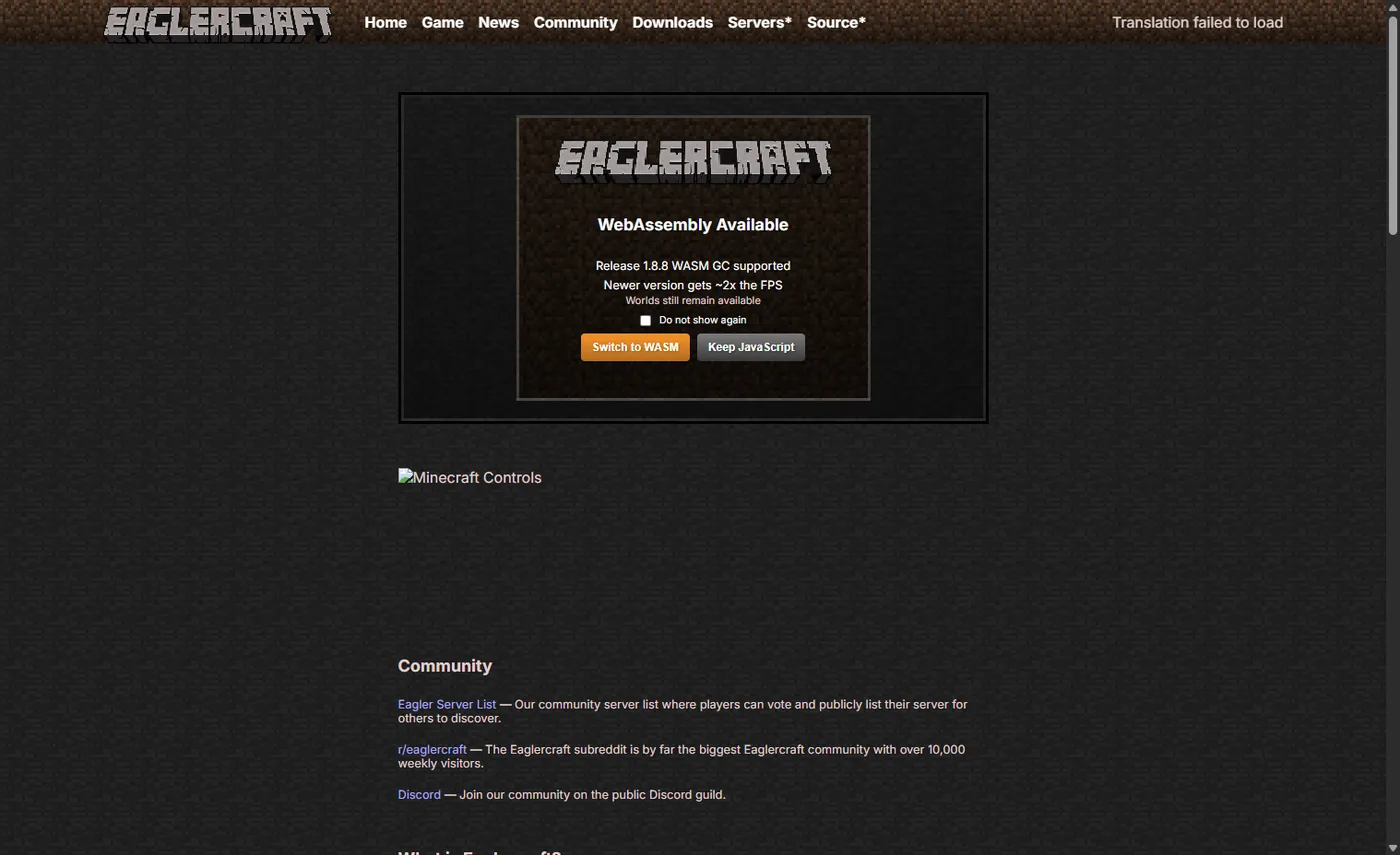
For an Eaglercraft lag fix, begin with the browser because it is the easiest variable to control. Keep one Eaglercraft tab open, close video streams and large web apps, and pause downloads. Restart the browser after a long session rather than carrying a tab that has accumulated memory pressure. An updated Chromium, Firefox, Safari, or another supported browser can also fix WebGL and WebAssembly bugs, but an update cannot turn weak hardware into a gaming desktop.
- Open a new private or clean browser window and load only the game.
- Disable extensions that inject scripts, block canvas features, or keep many pages active.
- Restart the device if the browser has been open for hours or the fan is constantly running.
- Test on a hard surface with airflow; do not diagnose a hot device while it is charging under a blanket or on a bed.
Graphics Settings That Usually Improve FPS
For an Eaglercraft lag fix, change one graphics setting at a time and retest the same route. Render distance is normally the biggest win because it controls how much terrain must be prepared and drawn. Lower it until camera movement is consistent, then raise it one step if the device still has room. Particles, clouds, smooth lighting, and animated textures can add smaller costs, especially on integrated graphics.
Render distance
Lower this first. It reduces visible terrain and chunk work, so it is the best starting point for an Eaglercraft low FPS problem.
Particles and clouds
Turn them down when effects cause spikes. They are useful for testing because the change is easy to reverse.
Fullscreen and scale
Use the mode that keeps the browser stable. A large scaled canvas can cost more than a slightly smaller, steady view.
Resource packs
Return to default resources when diagnosing. High-resolution or animated packs can make a graphics issue look like a network issue.
Network and Server Checks for Rubber-Banding
For an Eaglercraft lag fix, if singleplayer is smooth but a multiplayer world feels delayed, stop lowering graphics and test the connection. Use a stable Wi-Fi network, avoid a crowded download, and compare the same server at two different times. A WSS server can be busy or far away even when other websites open instantly. Browser play also depends on the relay or proxy path between the client and server, so a speed-test number alone does not prove that the game route is healthy.
| Test | Smooth result | What it suggests |
|---|---|---|
| Singleplayer camera turn | Consistent movement | The device can render a basic world |
| Multiplayer camera turn | Choppy only online | Check server load, WSS path, and Wi-Fi |
| Block break animation | Immediate offline, late online | Likely latency or server tick delay |
| Other browser pages | Normal while game is slow | The game workload or build is the focus |
| Different server | One server works better | Do not blame the whole browser or device |
Shaders, Mods, and Version Limits
For an Eaglercraft lag fix, remember that shaders and performance mods can change the diagnosis. A PBR or shader path adds GPU and memory work, while a modded client can change rendering, chunk behavior, or input. Return to the default renderer and resources before deciding that the base Eaglercraft build is slow. If the default build is stable and the shader build is not, follow the dedicated shader compatibility and WebGL checks instead of stacking more tweaks.
For an Eaglercraft lag fix, use the existing Eaglercraft shaders guide for PBR setup and shader-specific low FPS. This page covers the baseline path before you add shaders or mods.
A Repeatable Eaglercraft Lag Test
A repeatable test lets you tell whether a fix helped. Use a new or disposable world, the same browser window, and the same settings. Test for two minutes rather than judging the first loading screen, because initial WebAssembly compilation and chunk preparation can be unusually slow. Keep one change per run and undo it if the symptom gets worse.
Stop when the game is stable enough for the activity you actually want. A creative build, survival world, and competitive server have different performance needs. Do not promise a universal FPS number, and do not use a random benchmark screenshot as proof that another device will match it. If the browser still crashes after a clean test, preserve the error message and move to the relevant version, mobile, download, or shared-world guide.
- Record the client version, browser, device type, render distance, resource pack, and whether the test is singleplayer or multiplayer.
- Run the same two-minute route with default resources and no shader or mod changes.
- Lower render distance, particles, and background load one at a time; write down which change affects the symptom.
- Repeat online only after the offline test is stable, then compare a second server if the first remains delayed.
- Keep the settings that match your goal and share the version and conditions when asking for help.
| Record | Example | Why it matters |
|---|---|---|
| Client family | Eaglercraft 1.8.8 | Renderer and world behavior are version-sensitive |
| Browser and device | Chromium on Chromebook | WebGL, memory, and power limits vary |
| Settings | 6 chunks, default resources | Others can reproduce the same load |
| Symptom | Stable FPS but late blocks | Separates network delay from rendering |
| Test location | Singleplayer or WSS server | A server path adds another variable |
Shader-specific FPS problems
Use the shader guide when PBR, WebGL, or a shader resource pack is the variable that changed.
Read Shader GuidePlaying on a phone or tablet
Mobile controls, heat, browser memory, and touch input need a device-specific checklist.
Read Mobile GuideNeed a clean 1.8.8 baseline?
Start with the main browser guide before comparing settings, controls, or server behavior.
Read 1.8.8 GuideMultiplayer delay or refusal
Use the server and shared-world guides when the issue is connection timing rather than frame rate.
Read Server GuideFrequently Asked Questions
References and Further Reading
- Official Eaglercraft play page - Browser-play context and current launcher path.
- Eaglercraft news and updates - Version and browser capability context.
- WebGL 2 specification - Reference for browser graphics capabilities.
About the Author
Sophie Hartwell
Sophie writes practical browser-game guides about version boundaries, safe sources, device limits, and troubleshooting. This guide separates frame-rate problems from network delay so readers can test one variable at a time.
Last reviewed: October 12, 2026 - Focus: Eaglercraft lag, low FPS, browser memory, and graphics settings
Ready to test a smoother setup?
Record your version and device, start with default resources, and make one controlled change at a time. That produces a useful diagnosis without downloading an unknown client.