Eaglercraft Commands: Useful Cheats for Singleplayer and Local Worlds
A practical command guide for browser play: open chat, test familiar Minecraft commands, and understand the difference between a private world and a permission-controlled server.


Table of Contents
What Do Eaglercraft Cheat Commands Actually Mean?
Eaglercraft is a browser-based Minecraft experience, so many players search for the same slash commands they remember from Java Edition. The useful distinction is not whether the page runs in a browser; it is who owns the world and which version or server software is handling the command. A private world with cheats enabled can expose a different command set from a public server with plugins and permissions.
In this guide, cheat commands means commands that change a test world or help you inspect it, such as changing the game mode, giving an item, moving to coordinates, or changing the time. These examples are for learning and troubleshooting. They are not a promise that every server accepts every command, and they should not be used to bypass a server's rules or another player's permissions.
Eaglercraft versions also matter. The main site and existing guides focus on established browser paths such as 1.8.8 and 1.12.2, while community builds can change keyboard behavior, command support, or server compatibility. Treat a command result as version-specific evidence rather than proof that every Eaglercraft build works the same way.
A command can be valid Minecraft syntax and still fail because cheats are off, the server does not grant permission, or the browser client uses a different version or bridge.
How to Open Chat and Enter a Command
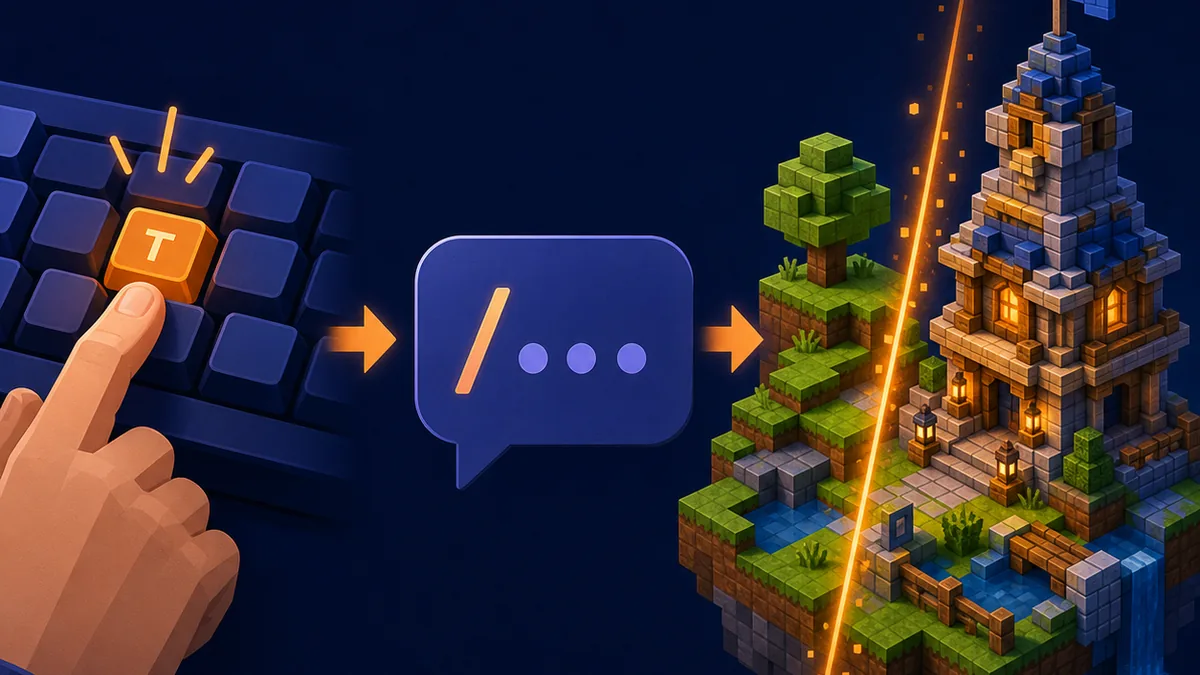
On a desktop keyboard, press T to open the chat box, then type a forward slash before the command. Keep the command in one line and use ordinary spaces between the command name, target, item, or coordinates. Press Enter only after checking the spelling; a missing slash or an accidental extra space can look like a normal chat message instead of a command.
If you are on a small keyboard or touch device, the first problem may be input rather than command permission. Click the game canvas before pressing T, switch to a normal browser tab rather than private mode, and check whether the on-screen keyboard is hiding the chat box. The mobile guide is useful when touch controls make chat entry unreliable.
Start with a harmless test such as changing the time in a backup world. If the command completes, the chat path is working. If the message says you do not have permission, do not keep changing syntax at random; move to the permission checks below.
| Step | What to check | If it fails |
|---|---|---|
| 1 | Click the game and press T | Check focus, keyboard layout, and touch controls |
| 2 | Begin with / | A missing slash sends ordinary chat |
| 3 | Use simple spaces and valid targets | Remove copied punctuation or hidden spaces |
| 4 | Press Enter and read the message | Permission errors need a world or server fix |
Useful Eaglercraft Commands to Test
The table below is a compact starting point for a compatible 1.8-style world. Use a disposable test world first. Target selectors, item IDs, and command aliases can differ between versions or server plugins, so an error message is more useful than forcing a command until it appears to work.
For item commands, the client may accept a short item name or a namespaced ID depending on the build. For teleport commands, replace the example coordinates with a safe location. A command that changes the game mode or inventory can alter the way a world feels, so export or back up a world before experimenting.
These are examples to test, not a universal command list. If the client reports an unknown command or invalid argument, use the error to identify a version or permission boundary.
| Example | Use | Important limit |
|---|---|---|
| /gamemode 1 | Switch to Creative in a compatible world | Requires cheats or permission; the number may vary by version |
| /give @p diamond 1 | Give the nearest player one item | Item names and selectors depend on the client |
| /tp @p 0 70 0 | Move the nearest player to coordinates | Use safe coordinates; servers may block teleport |
| /time set day | Set the world time | Usually a world-level command, not a server privilege |
| /weather clear | Clear rain in a compatible world | Some builds or servers disable weather changes |
| /spawnpoint | Set a personal respawn point | Needs a valid world context and may be restricted |
Singleplayer vs Server: Who Controls the Command?
A singleplayer or local world is the clearest place to test Eaglercraft cheat commands. The world settings decide whether cheats are enabled, and the client can often apply a command directly to the local game state. If you created the world, you can usually explain the result by checking the world options, the client version, and the exact error message.
A public server is different. The server, proxy, and plugins decide which commands exist and which players can run them. A browser client cannot turn a normal player into an operator. Server commands such as registration or login also belong to the server guide, not this singleplayer command list; never paste a password into a public chat box just because a command prompt asks for one.
When a command works in singleplayer but fails online, that is often expected. Compare the client version, the server's rules, the required WSS address, and the permission message before changing the browser.
Private world
Cheats and world settings decide what can run. Test here first and keep a backup.
Public server
Permissions, plugins, version compatibility, and server rules decide what can run.
Community build
A different port or bridge may change command support, input behavior, or target syntax.
Mobile browser
Touch input can make chat unreliable even when the underlying command is supported.

Why Does an Eaglercraft Command Not Work?
The most common mistake is treating every failure as a spelling problem. Read the complete red or gray message first. “Unknown command” points toward version or server support. “You do not have permission” points toward cheats, operator status, or a plugin rule. “Invalid argument” usually means the target, item, coordinate, or syntax is not accepted by that build.
If chat never opens, use the controls checklist instead of editing the command. Make sure the game has focus, the keyboard is using the expected layout, and the browser has not opened a permission prompt or an on-screen keyboard over the game. If only mobile fails, test the same world with a physical keyboard before concluding that commands are unsupported.
If the command works once and then stops, check whether you moved from a local world to a server, changed versions, or joined a server with a plugin that replaces vanilla behavior. Save the exact command and error message when asking a community for help; a screenshot of a claim without the version and context is hard to verify.
Unknown command
Check the client version, command spelling, and whether the server exposes that command.
No permission
Enable cheats in a test world or ask the server owner; do not attempt to bypass permissions.
Invalid argument
Simplify the target, item ID, or coordinates and test one argument at a time.
No chat input
Focus the canvas, press T, and check keyboard or touch settings before changing syntax.
Safer Habits When Testing Commands
Use a throwaway world or export a copy before running commands that change inventory, time, weather, teleport position, or game mode. A command is powerful because it changes state quickly; the same speed can make a mistake difficult to undo. Keeping a clean test world also makes it easier to tell whether a later failure comes from the command or from a changed save.
Never download an EXE, APK, browser extension, or “command tool” just to unlock normal Minecraft-style commands. A browser game command should be entered in the game chat, and a server command should be explained by that server. Unknown installers and forced extensions change the security decision without proving that the command will work.
Finally, protect account information. Do not paste passwords, session tokens, or private server credentials into chat, screenshots, public issue posts, or command examples. If a server's registration flow is unclear, read its welcome message and the dedicated server guide instead of guessing.
The safest command workflow is: backup, test locally, read the error, respect server permissions, and keep credentials out of chat.
Singleplayer Guide
Learn how to enable singleplayer, save a world, and export a backup before testing commands.
Read singleplayer guide1.8.8 Servers Guide
Separate vanilla-style commands from WSS addresses, login commands, and server permissions.
Read server guideMobile Guide
Check touch controls, keyboard limits, and practical browser expectations on phones and tablets.
Read mobile guideEaglercraft Commands FAQ
References and further reading
- Eaglercraft official downloads page - Use the official page to check established browser versions; this article does not turn community builds into official releases.
- Minecraft Wiki: Commands - General command concepts and syntax background; Eaglercraft clients and servers can differ.
- Eaglercraft 1.8.8 servers guide - Internal guide for WSS addresses, server registration, and multiplayer permissions.
About the author
Sophie writes practical browser-game guides that separate local gameplay, server permissions, version compatibility, and download safety.
Reviewed August 18, 2026 - focus: Eaglercraft command scope, input flow, and permission boundaries
Test commands in a clean world first
Start with a backup-friendly singleplayer world, then use the server and mobile guides when the problem is really permissions or input.