Eaglercraft 1.8.8 Texture Packs: guía segura para resource packs
Guía práctica para elegir, probar y solucionar texture packs de Eaglercraft sin confundirlos con mods, descargas inseguras o reglas de servidores.

Índice
Qué cambian realmente los texture packs de Eaglercraft
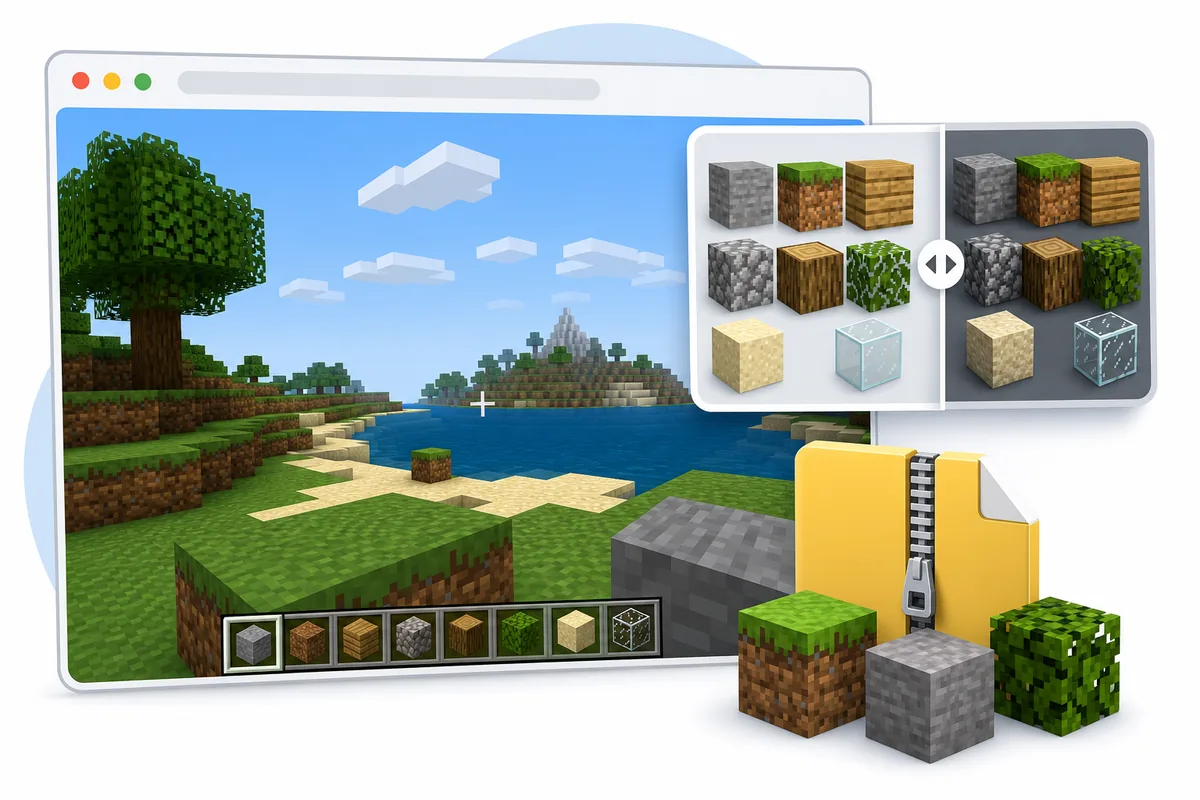
Los texture packs de Eaglercraft son paquetes de recursos visuales para un cliente de Minecraft 1.8.8 que funciona en el navegador. Un buen pack cambia texturas de bloques, iconos de objetos, elementos de la interfaz, partículas, fuentes o el cielo sin pedirte instalar un programa nativo. Por eso no es lo mismo que un mod de Eaglercraft: los mods pueden cambiar el código o el comportamiento del cliente, mientras que los paquetes de texturas deberían cambiar principalmente el aspecto del juego.
La suposición más segura para empezar es sencilla: si el archivo se comporta como un ZIP de recursos de Minecraft 1.8.8, puede merecer la pena probarlo. Si la página exige un APK, EXE, launcher, extensión del navegador, permiso de notificaciones o instalador ajeno, ya no es solo una decisión sobre texturas. Aplica la misma cautela que usarías con cualquier descarga desconocida.
Este tema merece su propia página porque quienes buscan texturas de Eaglercraft suelen querer una mejora visual, un pack PvP, un pack ligero para ganar FPS o un pack X-ray. La página principal, la guía de descargas y la guía de mods no responden por completo a esas necesidades. Aquí el límite es la compatibilidad del paquete de recursos y una prueba segura.
Un paquete de texturas debe poder revertirse. Debes saber qué archivo añadiste, dónde lo probaste y cómo volver al aspecto predeterminado.
| Intención de búsqueda | Lo que suele significar | Mejor siguiente paso |
|---|---|---|
| Paquetes de texturas de Eaglercraft 1.8.8 | ZIP de recursos visuales para un cliente 1.8.8 | Usa esta guía y prueba en un mundo descartable |
| Eaglercraft mods | Loader, código o cliente de navegador modificado | Lee la guía de mods antes de cambiar el comportamiento del cliente |
| Descarga de Eaglercraft | Duda sobre HTML, ZIP, APK, EXE o la seguridad de un mirror | Usa la guía de seguridad de descargas |
| Paquete de texturas X-ray | Paquete que cambia la visibilidad y puede afectar al juego limpio | Comprueba las reglas del servidor antes de usarlo online |
Cómo comprobar compatibilidad con resource packs 1.8.8
La compatibilidad empieza por la versión de Minecraft. Eaglercraft 1.8.8 se acerca al comportamiento de Minecraft Java 1.8.8, así que los packs creados para versiones modernas pueden incluir archivos, formatos de modelos o rutas de recursos que un cliente antiguo no entiende. Un pack para 1.20 quizá cargue parcialmente, pero son habituales las texturas ausentes, los elementos de interfaz rotos y los iconos extraños.
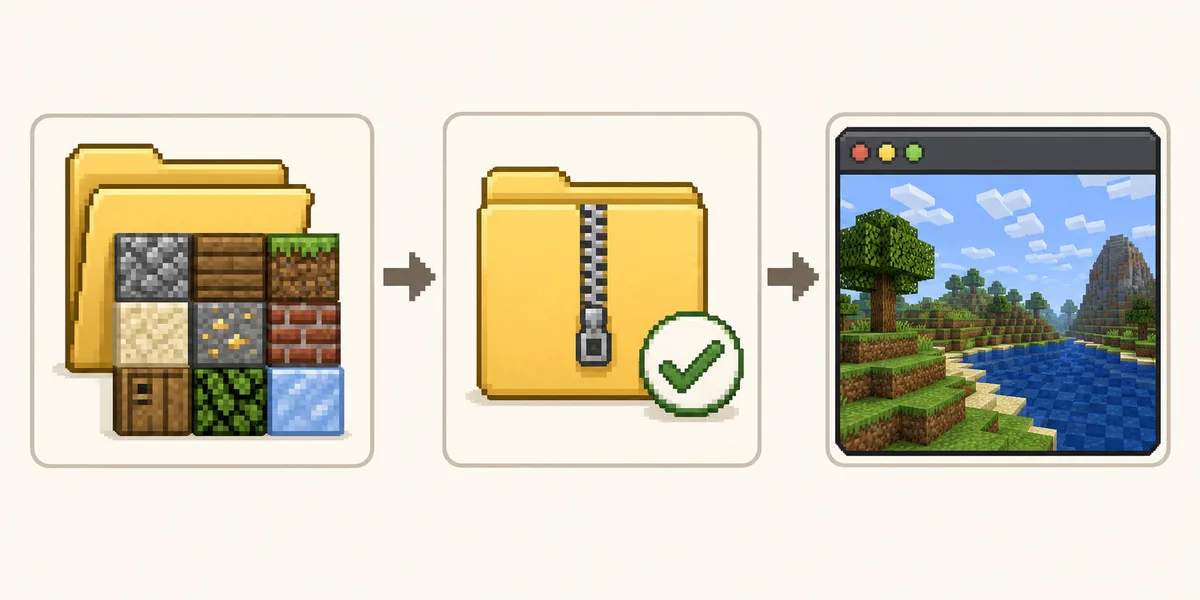
Busca packs que indiquen claramente 1.8, 1.8.8, PvP 1.8 o compatibilidad con paquetes de recursos de Java antiguo. Mantén el pack como ZIP salvo que la documentación del cliente pida extraerlo. Cambiar nombres o volver a empaquetar carpetas al azar puede hacer que un pack válido parezca roto porque el cliente puede esperar una estructura interna concreta.
Si ya usas la build 1.12.2, no supongas que el mismo pack se comportará igual. Mantén separadas las pruebas de 1.8.8 y 1.12.2, porque las rutas de recursos y las variantes del cliente pueden ser diferentes.
| Comprobación | Buena señal | Señal de riesgo |
|---|---|---|
| Version | Menciona 1.8, 1.8.8 o PvP antiguo | Solo menciona una versión de Minecraft mucho más nueva |
| File type | Un paquete de recursos .zip claro | EXE, APK, extensión o archivo sin explicar |
| Source notes | Muestra nombre, creador, versión y capturas del pack | Solo muestra un botón de descarga genérico |
| Test target | Primero un mundo singleplayer descartable | Primero un servidor público sin revisar las reglas |
Flujo seguro para instalar y probar texture packs
Como Eaglercraft funciona en un navegador, el botón exacto del paquete de recursos o el flujo de importación depende de la build del cliente. Algunas builds muestran un menú de paquetes; otras esperan que conserves el ZIP y lo elijas con un selector de archivos; y algunos clientes alojados desactivan por completo las importaciones locales. Si no ves un menú de packs, el problema puede estar en la build y no en el archivo.
Empieza con una prueba sencilla. Usa un pack 1.8.8 conocido, no modifiques el ZIP, abre un mundo singleplayer nuevo y revisa bloques, inventario, barra rápida, cielo y partículas. No pruebes cinco packs a la vez. Si algo falla, necesitas saber si la causa fue el archivo, el cliente, el almacenamiento del navegador o la estructura del ZIP.
Después de la comprobación visual, revisa el rendimiento. Los packs de alta resolución pueden hacer que el cliente del navegador pese más de lo esperado. Si bajan los FPS, vuelve a las texturas predeterminadas, reduce la distancia de renderizado, cierra pestañas en segundo plano y prueba un pack de 16x o 32x antes de culpar a todo el cliente.
Haz reversible la primera prueba: un pack, un mundo de prueba, un perfil del navegador y una forma clara de volver a las texturas predeterminadas.
- Elige un pack que indique de forma explícita compatibilidad con Minecraft 1.8 o 1.8.8.
- Conserva el ZIP intacto salvo que la documentación del cliente diga lo contrario.
- Abre el menú de paquetes de recursos o importación del cliente de navegador que uses.
- Carga un pack cada vez y reinicia el mundo si el cliente lo solicita.
- Comprueba bloques básicos, objetos del inventario, interfaz, cielo y partículas en un mundo nuevo.
- Pasa al multijugador solo cuando sepas que el pack es estable y está permitido.
Packs de texturas X-ray: demanda, seguridad y reglas
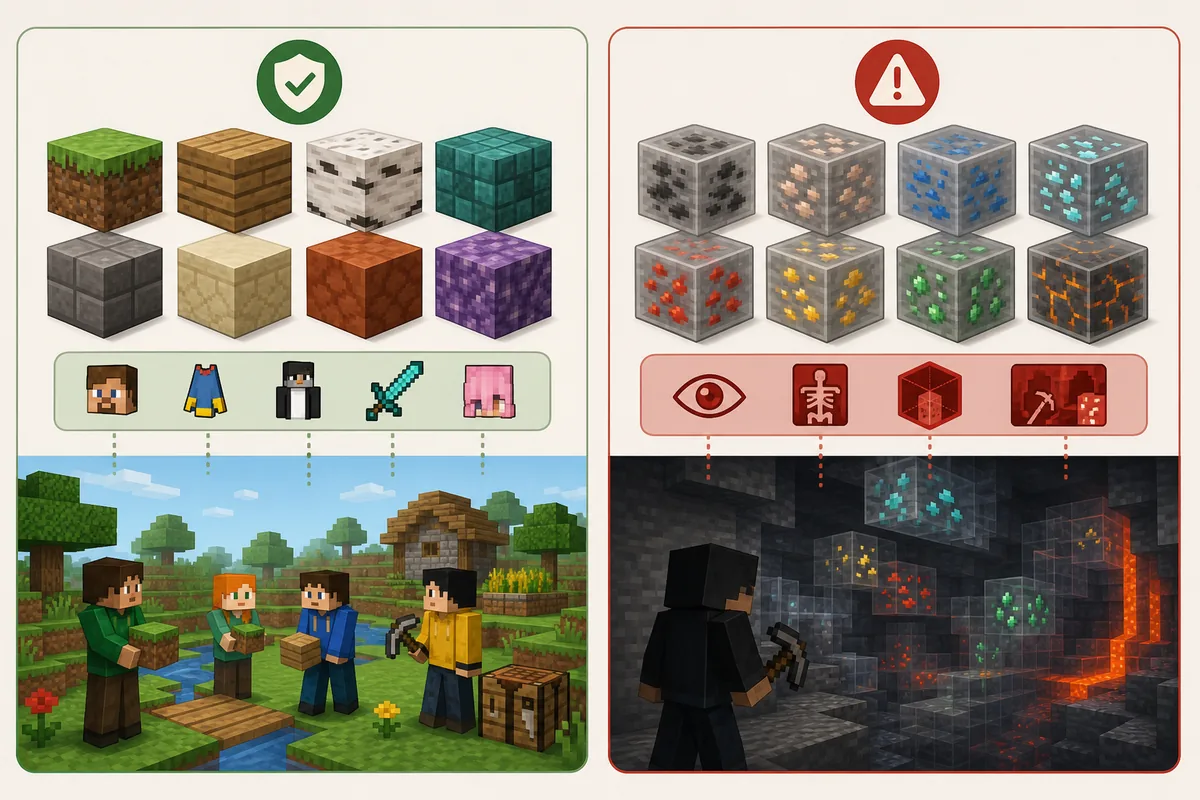
Las búsquedas de Similarweb y Semrush muestran variantes de packs X-ray alrededor de Eaglercraft 1.8.8. Eso no los convierte en una recomendación predeterminada. Un pack X-ray no es solo cosmético porque cambia lo que el jugador puede ver. En singleplayer puede ser un experimento privado; en servidores multijugador puede incumplir reglas, perjudicar el juego limpio o provocar un veto en esa comunidad.
Si en realidad buscas más brillo, mejor visibilidad en cuevas o texturas de minerales más claras, elige un pack PvP o de visibilidad normal. Puede mejorar la lectura sin convertir el juego en una ventaja informativa injusta. Si una página anuncia X-ray pero esconde el archivo detrás de instaladores o mirrors, evítala por completo.
La recomendación más segura es directa: no uses packs X-ray en servidores salvo que el servidor los permita expresamente. Que un cliente de navegador sea fácil de abrir no elimina las reglas de la comunidad. En caso de duda, usa texturas para estilo, legibilidad y rendimiento, no para ocultar información.
La intención X-ray debe aparecer como advertencia y en las preguntas frecuentes, no como la promesa principal de la página.
Mejor para el estilo
Packs PvP de baja resolución, bloques más limpios, una interfaz legible y partículas sencillas.
Mayor riesgo
Packs X-ray, visibilidad de minerales ocultos, promesas de saltarse reglas y mirrors de descarga poco claros.
Prueba singleplayer
Mundo privado, partida descartable y sin economía de servidor ni ventaja competitiva.
Regla multijugador
Usa solo packs permitidos por la comunidad del servidor y evita cambios de visibilidad injustos.
Problemas comunes y primeras soluciones
Si un pack no aparece en el menú, puede tener un tipo de archivo incorrecto, una estructura ZIP equivocada o no ser compatible con esa build. Revisa primero el nombre del archivo y las notas de la fuente. Si la carpeta real de recursos está dentro de otra carpeta, algunos clientes no la detectarán. Si el cliente no ofrece importación, usa una build que documente el soporte de packs en vez de forzar descargas ajenas.
Las texturas ausentes en rosa y negro, los objetos invisibles o las piezas rotas de la interfaz suelen indicar una versión incompatible o archivos no admitidos. Prueba un pack creado específicamente para 1.8.8. Si carga pero baja el rendimiento, elige una resolución menor y reduce la distancia de renderizado. Los límites de memoria del navegador pueden ser más estrictos que los de un launcher de escritorio.
Si el navegador se vuelve inestable, elimina el pack y vuelve al cliente predeterminado. No borres todos los datos del sitio sin entender que los mundos locales pueden estar guardados allí. Al probar packs visuales, conserva las copias de seguridad de los mundos separadas del perfil del navegador que usas para experimentar.
| Problema | Causa probable | Primera solución |
|---|---|---|
| Pack not listed | Estructura ZIP incorrecta o sin soporte de importación | Revisa las notas de la fuente y prueba un cliente documentado |
| Missing textures | Versión incompatible o rutas de modelos no admitidas | Usa un pack 1.8.8 |
| FPS drops | Resolución demasiado alta para jugar en el navegador | Prueba 16x o 32x y reduce la distancia de renderizado |
| Server warning | El pack incumple las reglas de la comunidad | Cambia a un pack cosmético normal |
Cuándo merece la pena usar texture packs
Los packs de texturas merecen la pena cuando resuelven un problema visual real: las texturas predeterminadas son demasiado recargadas, la interfaz cuesta leerla en una pantalla pequeña de Chromebook, las partículas dificultan la visibilidad en PvP o un pack de menor resolución ayuda a que el navegador funcione mejor. En esos casos, el pack mejora la comodidad sin cambiar las reglas básicas del juego.
Son menos útiles cuando el problema real es la calidad de la conexión, una descarga bloqueada, el formato de la dirección del servidor o una versión incompatible. Si falla el multijugador, lee la guía de servidores. Si el archivo parece sospechoso, revisa la guía de seguridad de descargas. Si quieres cambiar el comportamiento del código, usa la guía de mods en lugar de tratar un pack como si fuera un loader.
El mejor pack es el que puedes explicar y eliminar. Conoces su versión, tipo de archivo, propósito visual y compatibilidad con las reglas del servidor. Eso basta para que las texturas sean una mejora práctica y no otra búsqueda de descarga arriesgada.
Usa packs de texturas para legibilidad, estilo y rendimiento. Consulta otras guías cuando el problema sea la seguridad de una descarga, los mods o la conexión multijugador.
¿Quieres cambiar el comportamiento del cliente?
Lee la guía de mods antes de probar EaglerForge, archivos EPK o clientes de navegador modificados.
Guía de mods¿No tienes claro un archivo?
Usa la guía de descargas para evaluar los riesgos de HTML, ZIP, APK, EXE y mirrors.
Seguridad de descargas¿Vas a jugar online?
Comprueba las direcciones WSS y las reglas del servidor antes de usar packs personalizados en multijugador.
Guía de servidores¿Personalizas tu jugador?
Usa la guía de skins si solo quieres cambiar la apariencia del jugador con un PNG 64x64 seguro, no todo el mundo.
Guía de skinsShaders de Eaglercraft: cómo activar PBR y mejorar los FPS
Eaglercraft 1.8 puede incluir PBR integrado, pero necesita una versión compatible, WebGL 2, potencia gráfica y texturas PBR. Prueba primero la opción del lanzador oficial y evita clientes modificados sin fuente clara.
Guía de shadersPreguntas frecuentes
Referencias y lecturas útiles
- Minecraft Wiki - Paquete de recursos - Estructura general de los paquetes de recursos y contexto de versiones
- Nuestra guía de mods de Eaglercraft - Cuando el cambio va más allá de los recursos visuales
- Nuestra guía de seguridad de descargas de Eaglercraft - Cómo evaluar descargas y mirrors
Sobre la autora
Sophie Hartwell
Sophie escribe guías prácticas sobre Eaglercraft, juego seguro en navegador, versiones y compatibilidad. Esta guía separa la intención de los paquetes de recursos de los mods, las descargas y las reglas de los servidores.
Última revisión: julio de 2026
Prueba texture packs de forma simple y reversible
Empieza con un pack 1.8.8, pruébalo en un mundo descartable y entra a multiplayer solo tras revisar reglas.